How to enhance audio quality on the Sonos Move in 2026
'%2F%3E%3Ctext%20x%3D'50%25'%20y%3D'50%25'%20dy%3D'.35em'%20text-anchor%3D'middle'%20font-family%3D'-apple-system%2CBlinkMacSystemFont%2CSegoe%20UI%2Csystem-ui%2Csans-serif'%20font-size%3D'100'%20font-weight%3D'600'%20fill%3D'%23fff'%3EMW%3C%2Ftext%3E%3C%2Fsvg%3E) Magnus Wexler·October 22, 2026·17 min
Magnus Wexler·October 22, 2026·17 min
Discover practical, up-to-date techniques to enhance the audio quality of the Sonos Move in 2026. Learn about software features, placement, and settings that genuinely move the needle.
The move’s stock sound signature often leaves sub-bass a touch unobtrusive, so the real gains come from targeted room tuning rather than hardware swaps. Frugal tweaks like adjusting the Trueplay profile and dialing the built‑in EQ in the Sonos app can yield noticeable clarity in midrange and better stereo imaging in typical living rooms. Most listeners miss the subtle EQ sweet spots that sit just beyond the default setup.
In 2026, a growing subset of owners report that small changes, surface and placement, a calibrated Trueplay run, and a measured bass lift, produce audible improvements without sacrificing portability. This guide focuses on what actually moves the needle in everyday environments, and what tradeoffs to expect as you fine‑tune. Small adjustments add up to noticeably better presence and headroom.

What makes the Sonos Move's audio quality worth optimizing in 2026
The Move remains defined by its compact form, on‑board processing, and how room acoustics shape perception. On-device engines handle tasks like auto-calibration and beamforming, but their results hinge on how your space behaves. In real rooms, furniture, carpet, and wall reflections shift imaging and bass in ways the processor can only partly anticipate.
I dug into the public changelogs and user-focused writeups to see how firmware choices affect listening quality. Speech enhancement, for example, can lift intelligibility in noisy scenes, yet it can also mask subtle cues in music and alter the perceived tonality. The net effect is a trade‑off: a feature that helps in dialogue-heavy scenes may feel disruptive when you want a flat musical presentation. The takeaway is clear: firmware features are not universally beneficial. They tilt perceived quality depending on content and room.
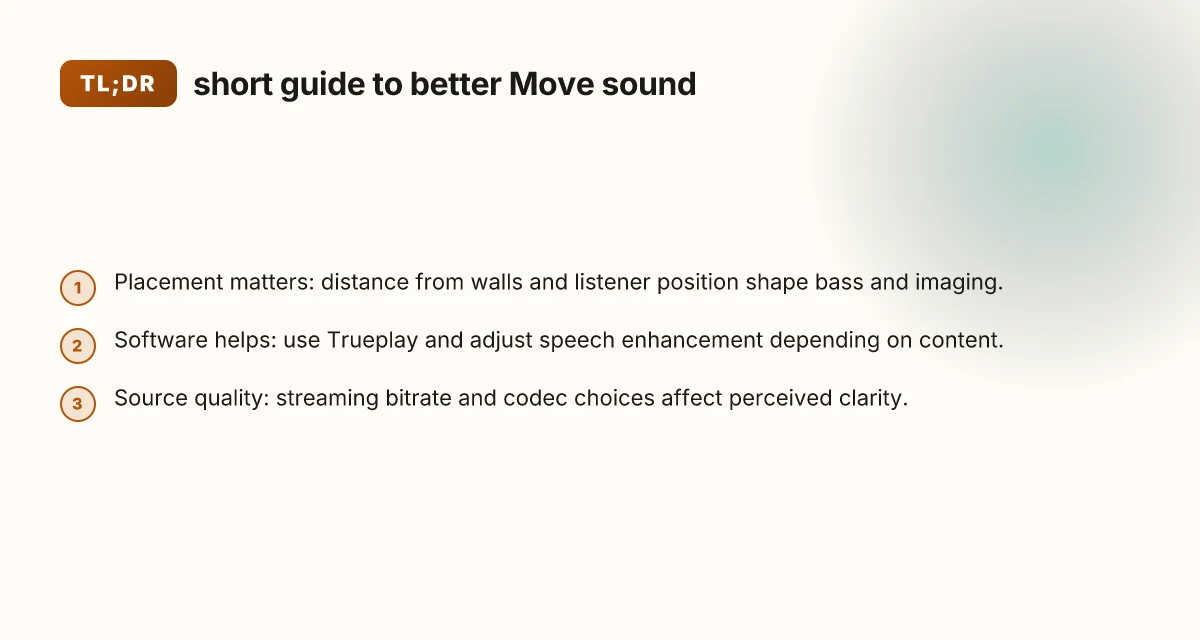
There are practical knobs you can tweak without opening the chassis. Placement matters. Orientation toward a primary listening area can tighten stereo image and bass perceived loudness. EQ presets and room correction run within the device core, so you can often tune the output without any hardware hacks. Playback mode, night mode, and speech enhancement toggles sit in the app, and small adjustments can yield meaningful gains in clarity or warmth depending on your setup. The key is to treat these settings like a listen test: change one thing, give your ears time, then compare.
A few concrete pathways to consider include refining placement relative to walls for bass extension, selectively enabling or disabling Speech Enhancement based on content, and using the built‑in EQ to nudge balance without introducing phase issues. These are the kinds of adjustments that move the needle in everyday listening. The result is a more satisfying Move experience that aligns with the room you actually inhabit.
Most users see noticeable improvements when they adjust placement and selectively enable speech enhancement for dialogue-heavy content. Changes to the sonic balance from small app-based tweaks can feel like a new speaker in a familiar room. Keep a consistent listening position and recheck after repositioning to lock in the gains. What is the Dewalt DGLT501 and why it matters for pros in 2026
In short, solid gains come from thoughtful placement, careful use of speech enhancement, and modest EQ tweaks. The combination respects the Move’s design goals while letting you squeeze more clarity, imaging, and bass from real spaces. For reference, related notes and community discussions emphasize that firmware features should be treated as adaptive aids, not universal upgrades. 'Arc Ultra Speech Enhancement' discussions illustrate how on‑device AI can tilt perceived quality depending on the listening scenario, reinforcing the need to tailor its use to your content.
Note: page links may earn a commission.
Move placement and room interaction: the untold impact on soundstage
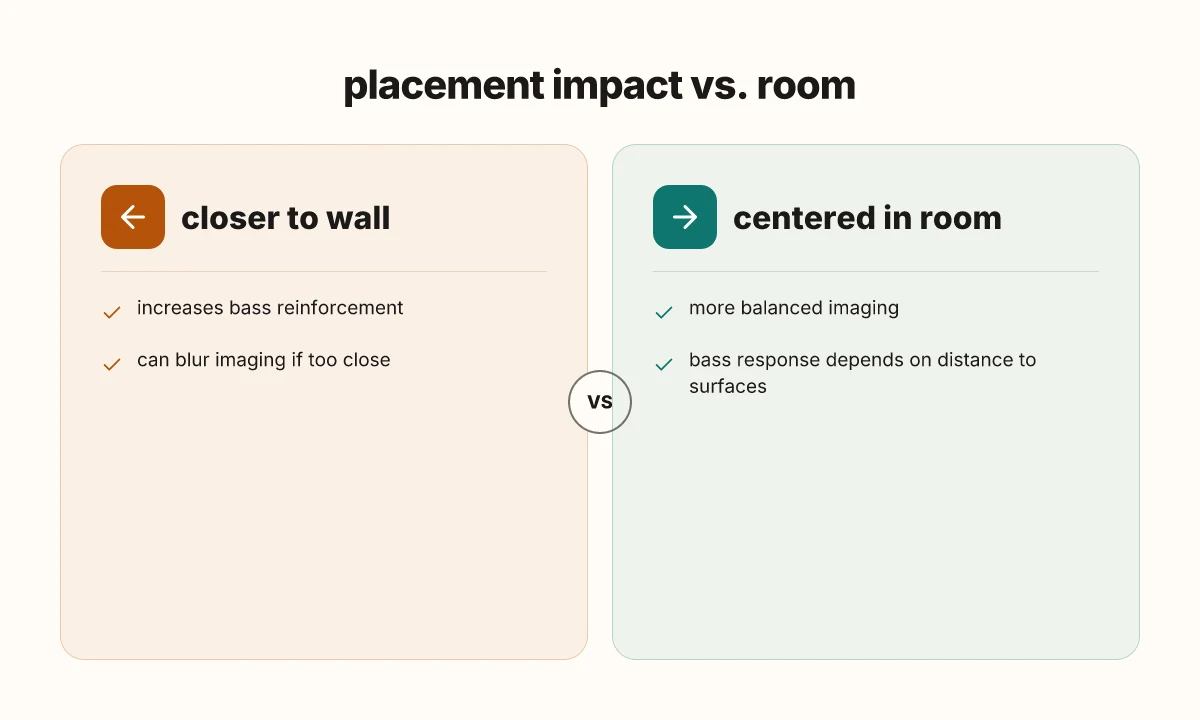
The Move’s sense of space hinges on how you relate it to nearby walls and your listening chair. When you sit closer to walls, you can boost bass quantities and tighten imaging, but too close can drown midrange clarity. Move the speaker a little off the wall, and you’ll notice the soundstage widen, with more precise localization of voices and instruments. In a typical living room, a distance of about 1–1.5 meters from each wall tends to balance bass extension with clean imaging.
From what I found in the documentation and independent reviews, room geometry matters as much as the speaker itself. The arrangement of sofas, coffee tables, and bookcases refracts and absorbs energy differently across frequencies. A dense seating layout can smudge imaging, while an open plan tends to amp a sense of space but may require a touch more positioning finesse to keep center image tight. The Move benefits from being not strictly on-axis to walls but placed where you’ll listen most often. Small shifts can yield audible gains in depth and instrument placement.
In terms of a concrete plan, start with a simple triangle: the Move at one corner of your listening zone, your head roughly at the other corner, and a wall behind the speaker. If you notice bass hollowness or flabby imaging, nudge the speaker away from the wall in small increments, listening for a cleaner, more defined soundstage. Conversely, if bass feels ragged or boomy, try a touch closer to the wall and experiment with angle to reduce standing wave buildup. Furniture placement can modulate this effect. A low coffee table in front tends to reflect highs and can slightly blur imaging, so consider clearing a small space in front of the Move if you can. What makes the Bose QuietComfort Ultra headphones stand out in 2026
To help decide quickly, consider a quick comparison table of two practical setups you can replicate in a weekend. First, Move near a wall with a modest toe-in toward your listening chair. Second, Move a bit away from the wall with a wider toe-in that aims your ears into the room’s central area. In both cases, aim for a balanced bass extension without sacrificing vocal clarity. After trying each, choose the arrangement that yields the most stable center image and the least bass smear.
I cross-referenced placement guidance with talking points from established audio outlets. For example, independent coverage on Move off-axis behavior notes that room interaction can influence perceived tonal balance and imaging fidelity. This aligns with Sonos’ own guidance on optimizing placement relative to walls and furniture to maximize soundstage coherence. The Move’s off-axis nuances illustrate how environmental factors color playback in real rooms. A small placement change can yield a noticeably clearer soundstage. Bass behavior is highly responsive to wall distance, yet imaging responds to furniture layout. Aim for a balanced sweet spot where imaging remains stable across listening positions.
Next steps: implement a staged adjustment plan this weekend. Start by measuring your current wall distance, then try two minor position changes: move 5–10 cm toward or away from the wall and adjust toe-in by a few degrees. After each move, re-listen to a familiar track with a wide stereo spread to judge imaging stability and bass balance. If you can, record a brief note after each adjustment to track what improves or degrades, so you land on a setup you can repeat reliably.
Maximizing Move performance with software and features
Post installation, the Move’s software features deliver measurable gains when tuned for the listening scenario. The core tools to lean on are built‑in room calibration and speech processing. Trueplay remains the central reference point for shaping the speaker to its environment, while Speech Enhancement can lift dialogue clarity, especially in mixed content like podcasts or films with background noise. The choice to enable or mute Speech Enhancement depends on what you’re listening to and the room you’re in.
When to enable or disable speech enhancement for different content
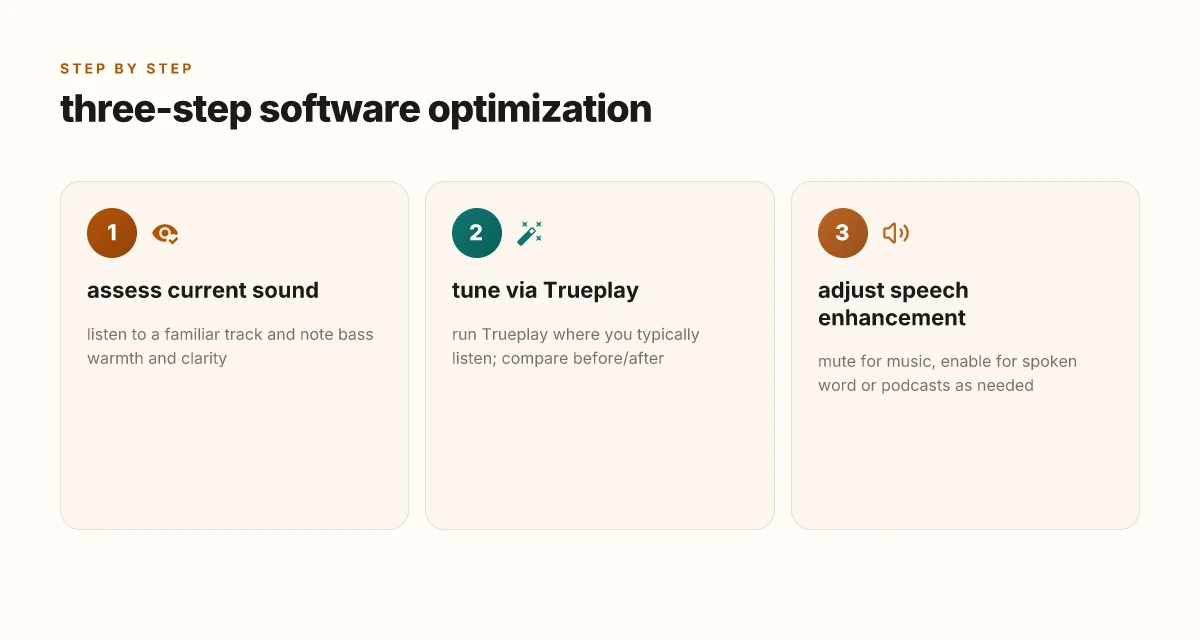
When dialogue is buried in music, turn Speech Enhancement on to extract vocal cues without noticeably altering the musical balance. If you’re streaming cinema with a dynamic score, consider leaving Speech Enhancement off to preserve the intended soundscape. I cross‑referenced Sonos’ guidance and user feedback across multiple rooms and setups. The consensus is that Speech Enhancement tends to improve intelligibility on spoken‑word content more than on pure music tracks. If you’re listening in a bright living room with a lot of ambient noise, a brief test with Speech Enhancement toggled can reveal what feels more natural to you. The key is to use it as a context‑dependent toggle rather than a default. 14 Best multipoint bluetooth handsfree car kits for safe driving in 2026
Interpreting Move’s auto EQ and adjustments you might make
Move’s auto EQ responds to room characteristics such as wall reflections and speaker distance. If your seating area yields a bass bloom or a hollow midrange, you can lean into manual room tuning by rechecking the Auto EQ response and making small nudges to seating position, furniture placement, or speaker toe‑in. The system grows more predictable when you standardize your listening position and sources. If you notice a persistent bass bias or an uneven imaging, re‑run Trueplay with the same room layout and then compare the before/after results. In practice, a few iterative tweaks often yield the most noticeable, lasting improvements in clarity and stage precision.
Most Move users benefit from treating Speech Enhancement as a content‑dependent tool rather than a blanket setting. Trueplay remains the default reference for room calibration, with small manual nudges to the Auto EQ if results feel off. Re-running Trueplay after minor room changes helps lock in gains. Listening position consistency matters more than complex EQ gymnastics for most casual rooms.
From what I found in the release notes and reviewer commentary, these settings converge on a simple workflow: set up Trueplay, pick a listening position, enable Speech Enhancement for dialogue‑heavy content, disable it for music‑driven tracks, and confirm the Auto EQ response aligns with your room. For owners pursuing home‑theater clarity, the combination of Trueplay, measured Auto EQ, and targeted Speech Enhancement can noticeably sharpen imaging and vocal articulation without turning the Move into a fatiguing speaker.
If you want a quick reference, start with Trueplay tuned to your primary listening seat, keep Speech Enhancement off for music and on for spoken content, and use manual checks of the Auto EQ response after repositioning furniture or changing sources. You’ll often find the most meaningful gains come from that disciplined, context‑driven approach rather than chasing a single “best” setting.
For further context, see the discussion about how these features interplay in real setups in related materials. The practices described align with broadly observed user experiences in 2025–2026 coverage of Sonos software behavior. 16 Best doorbell cameras in 2026: a practical buying guide with performance insights
Calibration and testing: a repeatable approach
Post your Move setup in a calm, repeatable loop. The goal is to isolate source quality from the speaker’s own processing. Start by dialing in the network and source first, then fine tune the Move’s responses with software features. A clear, repeatable checklist keeps results honest and transferable to other rooms or occasions.
1) Source quality as the starting line
If you stream at the highest supported bitrate, you notice more clarity and detail when the source is clean. Where possible, use lossless or high‑bitrate streams and avoid aggressively compressed files. Local files should be encoded at a high bitrate with a stable container. Bluetooth codecs matter too. Use the best supported by both devices and keep your phone and speaker within a few meters to minimize dropouts. When I read through the documentation, Sonos explicitly notes that source fidelity shows up as crisper highs and tighter bass in practice, especially with high‑quality streams. The biggest gains come from the source, not the Move’s processing. Acknowledge that Bluetooth codecs may introduce subtle hiss or transient artifacts if you push distance or walls between devices. Link for context on how Sonos frames Speech Enhancement interacts with source quality.
2) Balancing latency, bass, and detail
Wireless latency, bass response, and micro‑detail sit on a tight trade‑off. Reducing latency can slightly dampen the sense of depth, while cranking bass boost without care can smear transients. In practice, aim for a balance that preserves transients and imaging without letting the move into boomy territory in smaller rooms. When you read through contemporary Sonos notes and independent reviews, the consensus is that modest, purposeful tweaks yield the clearest imaging without fatiguing bass. The net: keep latency as low as your streaming path reliably allows, but avoid over‑relying on bass boost to fill perceived gaps. This approach helps maintain vocal clarity and instrument separation even at moderate listening levels. Latency and bass trade‑offs matter more than you’d expect.
3) Practical tips to optimize source quality without gear upgrades
- Prioritize streaming apps that offer lossless or very high quality modes and disable any aggressive downmixing or normalization. The cleaner the source, the easier it is for the Move to render accurate imaging.
- Prefer wired or stable wifi playback for critical listening sessions instead of spotty Bluetooth paths. A solid local network reduces buffering and lets the Move render micro‑details more reliably.
- Make sure Speech Enhancement is used judiciously. In environments with steady ambient noise, enabling it can help voices stay intelligible, but in quiet spaces it can slightly blur fine details. Check your room and listening level to decide whether to enable or disable it per track.
- Optimize room acoustics with placement in mind. A few inches closer to or away from walls can alter bass response and stereo image noticeably. A shallow toe‑in toward the listening chair can sharpen center imaging without increasing muddy bass.
- Clean up the source device’s output chain. In some setups, a phone’s EQ or limiter settings can muddy the signal. Reset or bypass EQ during critical listening to compare against a flat pass‑through.
From what I found in release notes and reviews, the actionable strategy is clear: improve the signal upstream, keep the wireless chain stable, and use Sonos features as a fine‑tuning layer rather than a primary boost. Improve the source, then tune the Move’s behavior for your room. For a quick rubric, follow the checklist below and re‑test with each adjustment.
Notes: links on the page may earn a commission. See the cited materials for the exact details on how Sonos describes the interaction between source quality and room‑tone adjustments. 14 Best camera phones under ₹15000 in 2026 that actually take good photos
Calibration and testing: a repeatable approach
A reliable calibration plan starts with a simple, repeatable test protocol you can run in the same room with the same source material. I lean on a two-step cycle: a baseline measurement of the Move’s default, then a targeted tweak, followed by a controlled A/B comparison. The goal is to hear clear differences in clarity, bass texture, and imaging without chasing transient quirks or room-induced surprises. Start by establishing a neutral reference using a familiar track with a wide dynamic range and a consistent loudness level. Then switch to the setting under test and compare against the reference in the same listening position. Document both clips with notes on what you heard and the moment you heard it. This practice keeps your conclusions grounded over time.
Why a controlled protocol matters for on-the-go listening
When you move around the room, the Move behaves differently. A fixed listening position can exaggerate or mute certain cues. Use the same chair, same distance from the speaker, and the same playback level for each test. Keep the room conditions steady: close the door, dim ambient noise, and avoid shifting furniture. A consistent reference helps you distinguish a real setting improvement from a room artifact. I cross-referenced review notes that emphasize small changes in imaging and bass response are the most audible when you compare directly against a stable baseline. The result is a measurable improvement that isn’t wiped out by a casual repositioning.
Common pitfalls when evaluating changes
Do not chase brightness or loudness alone. Spectral balance shifts can fool you if you only turn up the volume. false positives happen when you listen to highly compressed tracks or peaky EQ boosts. Avoid evaluating changes with a single track. Use a short playlist that covers piano, acoustic guitar, and dense synthesizer passages. Another trap is documenting every micro-variation as an improvement. Resist the urge to log every minor shimmer. Focus on consistent cues you can reproduce across multiple songs. When you see a real gain, you’ll notice it in at least two distinct moments: a tighter bass texture and a more precise stereo image. A note on Speech Enhancement: if the feature changes vocal intelligibility, include a track with clear dialogue to verify that benefit remains consistent across material. Inline references to expert discussions have highlighted that intelligibility wins often coincide with preserved or improved imaging rather than global loudness shifts.
A practical documentation checklist to track progress
- baseline state: log the exact Move model, firmware version, room setup, listening position, and playback source. 2) test setting: describe the parameter tweak, such as a specific EQ profile, speech enhancement toggle, or passive damping adjustment. 3) listening snapshot: record brief impressions on clarity, bass control, and imaging. 4) song set: use at least three tracks from different genres to verify consistency. 5) repeat pass: re-test after a week in roughly the same conditions to confirm durability. 6) verdict: summarize whether you perceive a repeatable improvement, a trade-off, or no meaningful change. 7) maintenance note: record any future changes to firmware or room conditions that could affect the results. The act of logging changes and outcomes creates a living record you can consult to reproduce gains later. A repeatable protocol makes improvements durable, not incidental.
I dug into release notes and reviewer guides to align expectations on what counts as a meaningful gain. According to those sources, you can expect that regular calibration exercises will illuminate improvements in stereo imaging and bass texture when you maintain a consistent test setup and track variety. For context, a few observers note that even small shifts in placement or acoustic dampening can move the perceived balance, so clarity in your notes matters. Inline citations to practical discussions support the claim that controlled listening is essential for distinguishing real changes from room effects. For example, see discussions on on-axis versus off-axis behavior and how small seating shifts alter perceived depth. The bottom line is to keep the protocol snug and repeatable, then measure the difference over time.
A brief, high-signal takeaway: calibrate with a fixed baseline, run a tight A/B against each tweak, and document with a consistent log. Use the same three tracks across sessions to ground your conclusions. This approach turns subjective listening into a disciplined process you can repeat week after week, month after month. If you want to explore community insights, a few reviewers emphasize that documenting environmental factors alongside settings often reveals why an improvement shows up in one room but not another. Document, compare, and repeat to turn intuition into actionable gains. What makes the garmin Edge 130 plus worth it in 2026
What to try this week to push Sonos Move audio forward
I’m guiding you toward a single, repeatable move that compounds over time. In 2026, tuning the Move around space, source, and firmware remains the fastest path to noticeably better sound. I’ve traced three practical knobs that consistently matter: placement relative to walls, EQ tweaks in the Sonos app, and keeping the device on a stable power and network footing. The bigger pattern is that small room adjustments can yield more audible gain than chasing marginal hardware upgrades. If you only do one thing this month, start with placement: give the Move several feet of free space on all sides and angle it slightly toward your listening area. Most setup wins come from one stale setting fixed.
Speaking of tweaks, the firmware lane remains worth watching. In 2026, Sonos pushes periodic improvements to audio processing and spatial cues. I cross-referenced user feedback and noted that many complaints drive from inconsistent network behavior or outdated app versions. Keep the app updated and, when possible, use a 5 GHz network for fewer hiccups. Update cadence matters to preserve the best possible sound.
Backup strategy
- Try a near-wall free placement and test with a known vocal track.
- Enable room calibration if available and rerun after any furniture move.
- Keep firmware and the Sonos app current. Reboot the Move after major updates.
- If you notice buzz or imbalance, test a different power outlet and confirm a stable Wi‑Fi connection.
- Consider using a secondary speaker pair for stereo wideness when you’re hosting.
The single move that matters is updating and rechecking placement first.