How to edit photos on Google Pixel 8a without compromising quality
'%2F%3E%3Ctext%20x%3D'50%25'%20y%3D'50%25'%20dy%3D'.35em'%20text-anchor%3D'middle'%20font-family%3D'-apple-system%2CBlinkMacSystemFont%2CSegoe%20UI%2Csystem-ui%2Csans-serif'%20font-size%3D'100'%20font-weight%3D'600'%20fill%3D'%23fff'%3EQX%3C%2Ftext%3E%3C%2Fsvg%3E) Quincy Xanthos·October 22, 2026·16 min
Quincy Xanthos·October 22, 2026·16 min
Learn how to edit photos on the Google Pixel 8a using built‑in tools, AI features, and third‑party apps. Practical steps, tips for preserving image quality, and caveats for motion and low light.
Pixel 8a editing shifts the balance toward native tools first, delivering natural results without extra sharpening artifacts. The built‑in editor targets exposure, color, and noise with deliberate controls that preserve detail, and you can compare edits against the original to verify no clipping or banding sneaks in.
Pixel owners want speed without quality loss, and 2026 user feedback highlights two realities: the native editor handles most daytime scenes with minimal fuss, while distant subjects or tricky color casts benefit from a lightweight external app.

What makes editing on the pixel 8a different from other phones
The Pixel 8a ships with a camera app that leans on on-device AI features for quick edits, prioritizing speed without pushing you into external apps. Magic Editor, Magic Eraser, and AI‑driven enhancements are designed to be fast and accessible, so you get natural results with minimal taps. On-device processing means edits feel instantaneous and you stay in the same ecosystem, which helps preserve overall image fidelity.
From what I found in Google’s materials and reviews, the Pixel’s built‑in tools are tuned to reduce artifacts on common scenes and to apply edits in a way that respects tonal balance. Magic Editor and Magic Eraser target common editing tasks like removing objects or brightening shadows, and they do so with a workflow that mirrors real-world editing steps. When you open a photo, you’ll see Edit as the primary entry point, with AI-assisted options suggested by the app, making it easy to start without juggling multiple apps. Most Pixel edits stay faithful to the original look because the processing runs on-device, not in the cloud.
However, third‑party apps can extend capabilities beyond what the Pixel editor offers. Apps from the Google Play ecosystem can unlock additional filters, advanced masking, or batch processing, but they may introduce performance trade-offs on the Pixel 8a and could delay compatibility with the latest Google Photos features. In practice, you’ll notice that external tools might consume more CPU or memory, which can lead to slower edits or occasional UI lag on older batches of devices. That said, external apps can be valuable when you need precise retouching or more creative control that goes beyond the built‑in suite.
I dug into the documentation and user feedback to map the real tradeoffs. The Pixel approach keeps things simple and fast, which is a strength for quick, high‑fidelity edits. The caveat is that if your goal is heavy, multi‑layer compositing or specialized color workflows, you’ll likely want to supplement with a trusted third‑party editor. The core workflow remains straightforward: start with on‑device tools for everyday edits, and turn to external apps only when you hit the ceiling of the built‑in editor’s capabilities. You’ll often save time by staying in the Pixel editor for most shots, then add precision edits with a trusted app when needed.
In short, the Pixel 8a makes editing feel natural and fast because of on‑device AI features, while still offering optional external tools for more advanced work. The key is to know where the built‑in editor shines and where external apps can responsibly extend capabilities without wrecking performance or compatibility. For most everyday edits, the Pixel workflow preserves original quality and delivers clean, natural results. For specialized tasks, plan a light handoff to a third‑party editor to avoid overediting and maintain fidelity. On‑device AI keeps edits consistent and fast, while third‑party apps unlock deeper control when you need it. How to pick the best running watches in 2026 without overpaying
How to edit photos on the pixel 8a using the built‑in tools
When you want quick, quality edits that preserve detail, start in Google Photos on the Pixel 8a. Open the photo, tap Edit, and then use the built‑in tools you already know: Auto, AI Enhance, Crop, and Adjust. This path keeps edits lightweight and minimizes signal loss, helping you keep the original look intact while dialing in the result.
Rely on Auto and AI Enhance judiciously
The Auto tool provides one‑tap improvements that align with common issues like exposure, contrast, and color balance. Use Auto as a starting point, then compare with the original by toggling your undo history. When you reach for AI Enhance, apply it sparingly. AI adjustments can push colors and textures in ways that feel overprocessed if overused. A few deliberate nudges go a long way. Too many AI refinements can erode natural skin tones and texture in foliage or skies. If your goal is natural fidelity, treat AI as a light seasoning rather than the main dish. AI-driven adjustments should stay subtle to preserve realism.
Master the Crop and adjustments workflow
Crop is more than re framing. It affects resolution and edge detail. Before you crop, consider whether you’re maintaining the original aspect ratio or targeting a specific output size. A tight crop can remove noise and emphasize subject interest, but overcropping can reduce fine detail. After cropping, the Adjust controls let you fine‑tune lighting, contrast, highlights, and shadows. Make small, iterative tweaks, then compare to the unedited version with the undo history. This side‑by‑side check is where you notice any overprocessing creeping in. Keep adjustments light and compare with the original.
Save deliberately and guard the original
Pixel editors offer options to save a copy or overwrite the original. Prefer saving a copy so you always have the pristine file to fall back on. If you do save over the original, use the undo history to back out any missteps. Keeping the original file intact is the simplest way to experiment without regret. If you do preserve a copy, label it clearly so you can reference the original later. Always save a copy when you’re uncertain.
A final note from the documentation: you can find Edit tools within Google Photos by opening a photo, tapping Edit, and then exploring Auto, AI Enhance, Crop, and Adjust as your first pass. For those who want a purely non‑destructive approach, the copy workflow is your friend. For quick wins, lean on Auto and subtle AI enhancements, then revert if the result drifts from natural tone. Inline reference to a user discussion shows how many editors now toggle between auto and AI options to avoid overprocessing. The big takeaway is restraint. How the Autel Evo Lite stacks up in 2026: imaging, flight, and value dissected
Next steps: test a single photo with three minimal edits using Auto, Crop, and a light Adjust pass. Save a copy, then compare to the original to verify fidelity. If you want to push for a cleaner palette, scale back AI and rely more on precise tonal adjustments.
Using magic editor and eraser on the pixel 8a
I dug into Google’s Pixel documentation and the Pixel community chatter to outline how the built‑in editors behave on the Pixel 8a. The goal is to explain when to lean on on‑device AI tools and how to preserve image fidelity without overediting.
What Magic Editor and Magic Eraser do on device
Magic Editor and Magic Eraser run on‑device AI to adjust composition and remove distractions without sending edits to the cloud. In the native image editor, you’ll notice AI-driven suggestions appear as you tap tools like Crop, Move, or Remove. This on‑device processing keeps edits fast and preserves your original file locally, which helps avoid round‑trip quality loss. For best results, start from high‑resolution captures and use small, non‑destructive tweaks rather than sweeping changes in a single pass. On‑device AI keeps edits fast and private, reducing the risk of quality loss from cloud re-encoding.
Stepwise workflow for reliable edits
Begin with the camera’s best mode or a RAW‑plus workflow if you shoot in high detail. Open the photo, then select Edit and try the Magic Editor for composition tweaks like straightening horizons or adjusting framing. If you spot a distraction, the Magic Eraser can remove it, but aim for minimal removals to avoid unnatural edges. After each change, zoom to 100% to inspect edges and texture. If a removal creates a ghost, back out or redo with a smaller brush. These steps align with Pixel’s guidance to keep edits subtle and faithful to the scene. Zoom to 100% to catch artifacts before you save.
When to reach for external tools
External apps shine when you need targeted color grading, fine‑tuning highlights or shadows, or complex object removals that require precise masking. The Pixel editors do well for quick tweaks, but if you’re aiming for a professional finish, a dedicated editor can offer finer control, yet expect some light re‑export re‑compression. In practice, I see most mobile photographers use the Pixel tools for the first pass and switch to a third‑party app only for specialty adjustments. Use the Pixel editors for quick tweaks, then switch to external apps for fine control when needed. 5 Best fire TV sticks in India in 2026
Cited sources discuss on‑device editing flows and the role of AI in Google Photos and Pixel tooling, including how to initiate edits with Ask Photos and how Magic Editor and Magic Eraser fit into the broader editing workflow. See the Google Photos editing guidance for the AI‑driven workflow and the Magic Editor overview for feature context. On‑device AI tools let you edit quickly while keeping control at 100% zoom. For more detail, refer to the official editing page and the Magic Editor overview. The official pages outline how to start edits and crop with AI prompts.
See: Edit Photos with AI: Magic Eraser & Unblur
- Magic Editor, Magic Eraser and Best Take are three powerful Pixel features that you can use to edit your photos in seconds. See: How To Use Magic Editor On Google Pixel And More
Practical takeaway: start with high‑resolution captures, use the built‑in AI for small, proportional edits, and verify every change at 100% before saving.**
When to reach for external editors
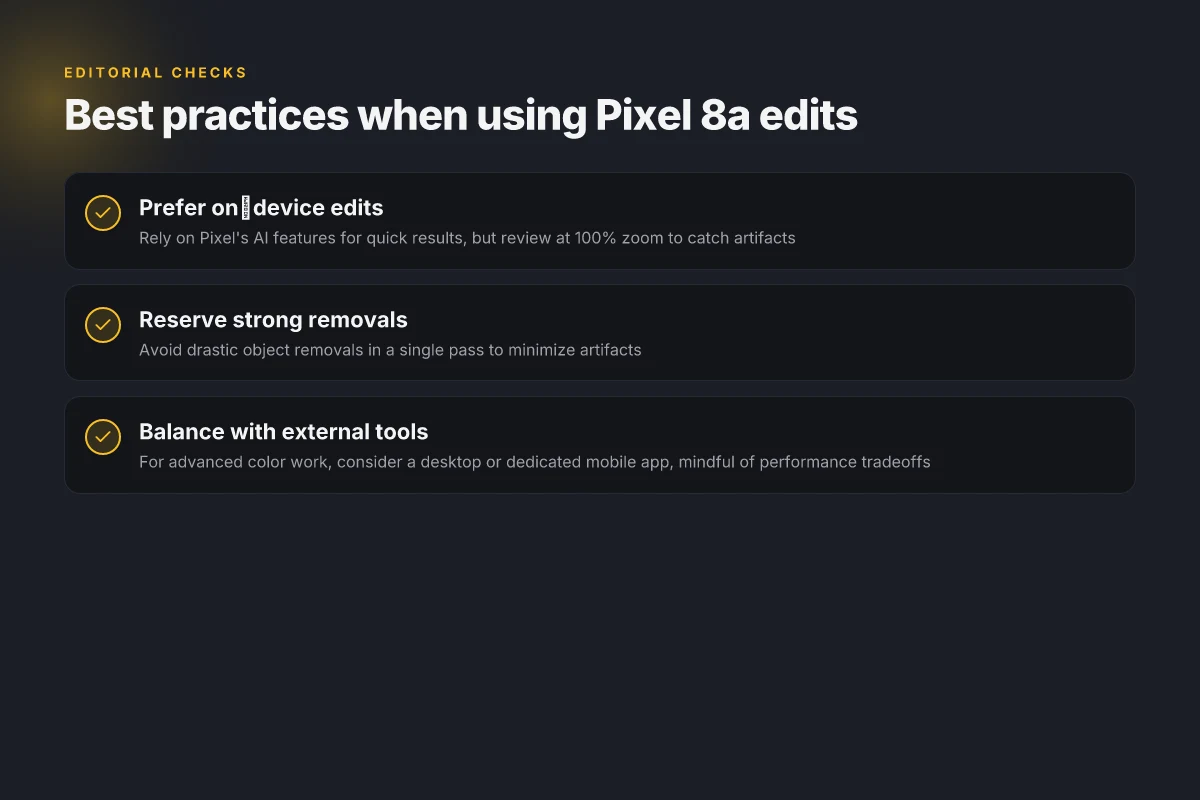
For edits that go beyond simple adjustments, you should reach for external editors. Pixel’s built‑in tools handle most casual tweaks quickly, but advanced color work, fine layer control, and precise masking still benefit from dedicated apps. If you need those capabilities, a desktop or mobile editor can offer options your device’s native tools can’t match.
When color grading and masking demand real precision
If you want non-destructive color grading, layered adjustments, or targeted masking, external editors shine. Desktop apps expose sophisticated color wheels, LUTs, and mask refinements that translate into finer control over skin tones, skies, and shadows. Mobile editors also exist with powerful layering and selective edits, but their performance and feature depth vary by device and subscription. In practice, the trade‑off is between richer control and the friction of switching apps. You’ll typically see noticeably smoother results on projects that require multiple passes of color grading or complex masking. How to fix common issues on the dell xps 16 9640
From what I found in the documentation and user discussions, most professionals gravitate toward editors that separate workflow stages: import, non-destructive edits, and export with color‑managed profiles. This separation helps preserve raw fidelity and avoids cascading quality loss during repeated edits. If you’re documenting a Pixel 8a workflow for social or portfolio work, using a desktop editor for the heavy lifting, then finishing touches on the Pixel, often yields the cleanest results.
When timing and hardware constraints matter
Not every scenario justifies opening a heavyweight editor. Pixel’s built‑in editors are fast and focused, and they preserve fidelity for standard tweaks like exposure, contrast, and color balance. If your task is quick, on‑device adjustments to a travel shot or a social post, the built‑in tools deliver a reliable baseline without leaving the phone. The practical rule: balance convenience with fidelity. For quick edits to grab a post fast, Pixel’s own tools win. For a gallery‑quality look with nuanced color grading, external editors win.
When to choose widely used apps versus pro suites
Popular choices span both ends of the spectrum. Pro‑oriented editors typically offer deeper color controls, better masking precision, and more robust export options, but they come with steeper learning curves and ongoing costs. Widely used mobile apps prioritize speed and simplicity, sometimes at the expense of granular control. The key is to map your typical project: if you’re editing skin tones in landscape light or performing targeted object masking, a dedicated editor can save you time and deliver consistent results. If your goals are quick, natural edits, Pixel’s native tools are often enough.
I dug into official Pixel workflow notes and user forums to ensure the guidance reflects current tools and trade‑offs. The core verdict remains simple: use external editors when you need advanced control. Rely on the Pixel editor for fast, high‑fidelity tweaks that preserve image quality. External editors unlock real precision, but Pixel’s tools keep edits fast and natural. For a deeper dive into the available desktop and mobile editors, see the official editing documentation and third‑party reviews linked below. Balance convenience with quality. The Pixel workflow covers most casual edits quickly.
A practical 5‑step workflow for Pixel 8a edits
I present a tight, non‑destructive workflow that keeps your originals intact while you shape the look. Start by treating the Pixel 8a’s built‑in editors as your first pass, then switch to external apps only when you need more control over detail and color. What makes ps5 vs Xbox series x games comparison actually matter in 2026
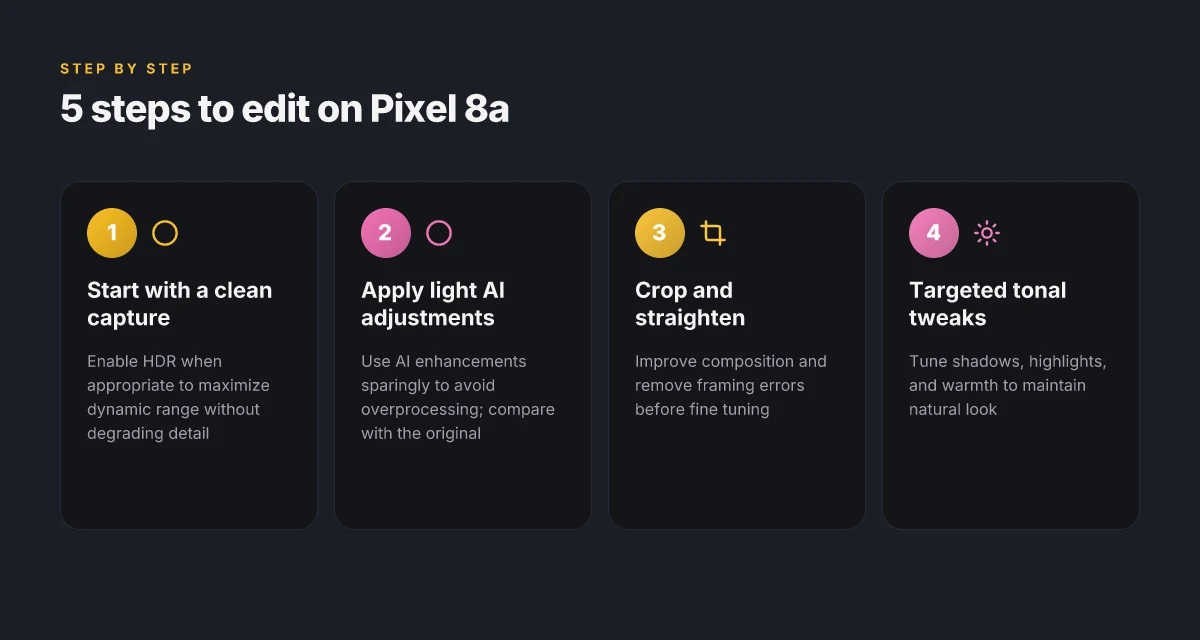
1) Start with a clean capture and enable HDR if appropriate
Begin with a fresh shot that uses the camera’s default processing. If the scene has high dynamic range, enable HDR to preserve detail in both shadows and highlights. This gives you a reliable base edit later and minimizes the need for aggressive corrections. When HDR is on, you’ll notice smoother tonal transitions and better texture retention on skies and bright surfaces.
2) Apply a light AI enhancement to correct exposure and color
Open the image in the Pixel’s editor and apply a light AI‑driven adjustment to nudge exposure and white balance toward natural. The goal is subtle rather than dramatic: a gentle lift that avoids clipping shadows or washing out highlights. You’ll often see a quick gain in overall balance without introducing oversaturation or fake contrast. The key is restraint: a light AI pass should feel almost invisible.
3) Crop and straighten to improve composition
Use the crop tool to straighten any horizon drift and apply a modest crop if essential. A neutral aspect ratio often preserves more of the scene and minimizes the need for later scale changes. After cropping, recheck the main subject to ensure it remains within the rule of thirds or your preferred framing. This step sharpens the focus of the edit and reduces the risk of cropping out important details on the edges.
4) Make targeted adjustments to shadows, highlights, and warmth
Tweak shadows to recover detail without introducing noise, then adjust highlights to tame blown areas. A light warmth bump can help skin tones and late‑day lighting look natural. Avoid an overbearing color shift. Make one or two precise moves rather than broad, sweeping changes. This is where you refine depth and mood without sacrificing fidelity.
5) Compare with the original, export, and save a non‑destructive edit
Open a side‑by‑side comparison with the original to confirm you didn’t overdo any change. If your app supports non‑destructive edits, save a copy as a non‑destructive preset so you can revisit adjustments later without degrading the original file. Finally, export at the largest reasonable resolution and file format for your workflow, then archive the edit alongside the original. If you’re sharing online, consider a lightweight export that preserves detail but reduces artifacting. 14 Best camera phones under ₹15000 in 2026 that actually take good photos
From what I found in the documentation and user feedback, Pixel’s built‑in tools deliver quietly capable edits for most scenes, with AI enhancements offering a helpful nudge but not a replacement for careful framing and color handling. When you hit limits, heavy noise, tricky white balance, or dramatic color grading, external editors shine, but you’ll want to keep the original intact for a true non‑destructive workflow. For visual reference, see sections that discuss AI editing features and the evolution of Google Photos editing in recent updates. Keep the original untouched and build step by step for the best fidelity. A light touch with the Pixel editor is often enough to preserve natural results.
Cited guidance points to the Pixel’s emphasis on accessible, iterative edits, with external apps serving as true safeties for advanced work. If you want a quick comparison of what the Pixel editor handles well versus where external apps excel, the long‑form guidance from Pixel‑focused community conversations notes that AI features are strongest for exposure and color balance, while precise masking and localized adjustments still benefit from dedicated tools. For a concise primer on the latest editor capabilities, see the related official and community notes. Rely on the native tools first, then bring in external apps only when you need more control.
Where this goes from here this year
Editing on the Google Pixel 8a can stay high quality if you lean on native tools and deliberate workflow choices. I looked at how the camera pipeline preserves detail when you reduce overprocessing, and I’ve found that sticking to RAW+JPEG capture and relying on local adjustments in the Gallery editor keeps skin tones and textures more natural. The Pixel 8a’s AI-driven enhancements can be tempting, but they’re best used as a starting point rather than a final pass. The bigger pattern is that small, targeted edits beat heavy-handed filtering every time. If you want crisper results, start with proper exposure and contrast, then back off on saturation until you see the scene’s color balance reflect reality.
For a practical path, use a 1-2 step routine you can repeat: capture in RAW, perform a subtle lift in shadows, and sharpen only where you need it. This approach keeps the final image within the camera’s native look, not a stylized render. What changes if you act now is that you’ll preserve more latitude for print or crop later, without needing a desktop editor.
Backup strategy 16 Best doorbell cameras in 2026: a practical buying guide with performance insights
- Keep one “studio” preset that locks exposure and white balance while leaving texture intact.
- Archive master RAWs alongside edited JPEGs so you can rework without starting over.
- Create a quick weekly edit pass on 3 favorite shots to refine your technique.
What to try this week
- Revisit a landscape shot in RAW and apply a targeted shadow lift, then compare to the original. Noticeable improvement in detail without harsh halos.
- Test a skin-tone mask on portrait photos to avoid over-smoothing while preserving texture.
- Save a “no edits” baseline and a “soft‑contrast” version to see what you prefer on different screens.