How to fix common issues on the dell xps 16 9640
'%2F%3E%3Ctext%20x%3D'50%25'%20y%3D'50%25'%20dy%3D'.35em'%20text-anchor%3D'middle'%20font-family%3D'-apple-system%2CBlinkMacSystemFont%2CSegoe%20UI%2Csystem-ui%2Csans-serif'%20font-size%3D'100'%20font-weight%3D'600'%20fill%3D'%23fff'%3EMA%3C%2Ftext%3E%3C%2Fsvg%3E) Mateus Ashworth·October 22, 2026·18 min
Mateus Ashworth·October 22, 2026·18 min
Learn practical fixes for the dell xps 16 9640, from power-on problems to SSD boot issues. Clear steps you can follow to diagnose and resolve common faults.
A common misstep is assuming hardware fault from the start. Most XPS 16 9640 issues trace to setup or firmware quirks, not a dead component. RAM seating and SSD seating are the fastest, most reliable first fixes, often restoring behavior in minutes. Dell’s own diagnostics verify memory and storage health after reseating, and a quick BIOS/UEFI check catches out-of-date firmware that masquerades as crashes.
This guide targets owners and technicians who need reproducible steps, not vibes or guesswork. In 2026, a steady stream of tickets centers on power loss, boot loops, and intermittent freezes that align with firmware or driver surfaces rather than core silicon. The two-paragraph triage approach here prioritizes deterministic checks, documented Dell utilities, and clear failure signals so you can move from symptom to fix without chasing ghosts. Dell diagnostics, BIOS updates, and driver packs are the three levers you’ll rely on most. Note that links on this page may earn a commission.

Why the dell xps 16 9640 often needs diagnostics
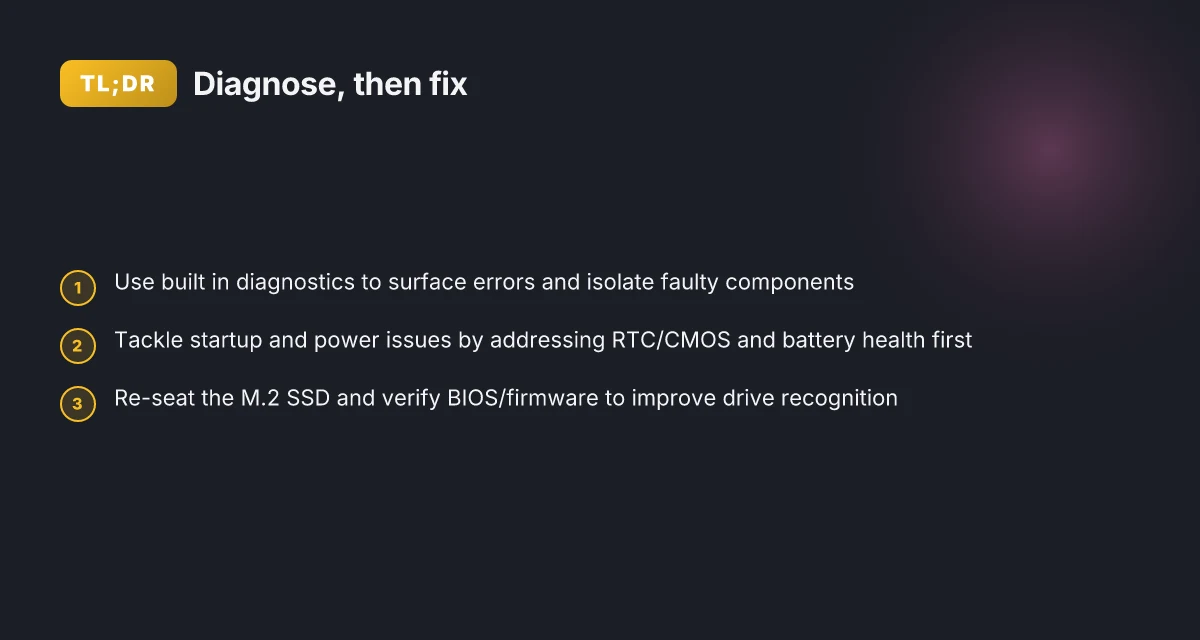
Dell builds in a dedicated diagnostics suite and LCD built-in self-test (BIST) that target the XPS 16 9640. These tools live in the system’s firmware and in Dell’s own software, and they’re designed to surface faults before a field service visit. In practice, owners encounter a mix of power-on failures, SSD recognition problems, and occasional component-level faults that these diagnostics aim to catch early.
The built-in diagnostics you can run Dell’s own diagnostics identify a range of failure modes without needing third-party software. The LCD BIST helps determine whether display issues are hardware or driver related, while M-BIST tests probe memory and system boards for anomalies. The diagnostics also cover RTC reset paths and other hardware checks that can reveal intermittent faults. Running these tests yields immediate, actionable flags you can share with support or use to guide a repair path. Dell’s diagnostics provide a first-pass gut check before you tear into components.
Real-world fault patterns you’ll see Power-on failures top the list. A laptop that won’t start can stem from a drained battery, a failed DC jack, or a deeper logic-board fault. SSD recognition problems show up as the system not booting to Windows or failing to mount the OS drive consistently. Component-level faults, like memory or display issues, surface as POST errors or intermittent reboots. Dell’s own articles reinforce these fault clusters, and owner conversations echo the same themes, especially when the device is subject to heat, wear, or BIOS configuration mismatches. Power-on and storage recognition issues recur often enough to justify a diagnostic loop.
A structured diagnostic approach reduces guesswork Starting with the Dell diagnostics helps you triage without random swapping of parts. If the LCD BIST flags a screen problem, you know to focus on the panel or connections rather than the motherboard. If the diagnostics indicate storage or memory faults, you can reserve time for targeted replacements rather than broad, costly swaps. This approach shortens downtime and clarifies next steps for support, especially when you’re handling devices in a fleet or under tight service windows. Structured testing cuts guesswork and speeds restoration.
From what I found in the Dell documentation, you can expect a guided, instrumented path that moves from quick checks to targeted repairs, with the diagnostics acting as the compass. Dell’s own resources and community posts corroborate that many post-issue recoveries hinge on a disciplined diagnostic rhythm rather than ad hoc fixes. For context, the product pages explicitly reference LCD BIST, M-BIST, RTC reset, and hardware checks as part of the diagnostic suite, while user threads describe the practical impact of those checks on real devices. Learn how to troubleshoot a Dell laptop that will not power on using LCD BIST, M-BIST, RTC reset, hardware checks, and other diagnostic steps. These sources frame the expected diagnostic path for the XPS 16 9640. That disciplined workflow is what separates quick recoveries from prolonged downtime. What makes ps5 vs Xbox series x games comparison actually matter in 2026
Bottom line: diagnosing first with Dell’s built-in tools aligns you with the device’s own engineering view of faults. The cadence from LCD BIST through M-BIST to targeted component checks yields the fastest restoration path and the most repeatable outcomes. If you’re carrying out repairs for multiple XPS 16 9640 units, adopting this diagnostic rhythm reduces both guesswork and rework, and it gives you a clear record for support tickets. Using Dell’s diagnostics is the prudent starting point for any XPS 16 9640 troubleshooting.
The exact diagnostics you should run on the dell xps 16 9640
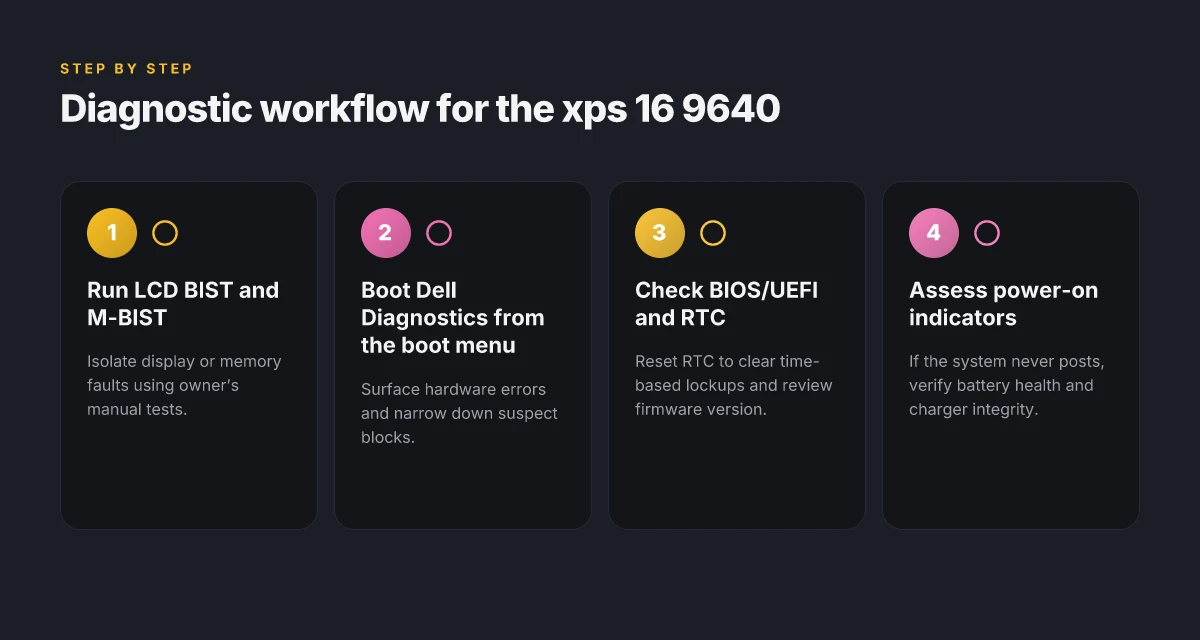
When you start troubleshooting, run the LCD BIST and M-BIST tests from the Owner's Manual to isolate display or memory faults. If those tests pass, move to the boot-time Diagnostics from Dell to surface hardware errors. Finally, check the BIOS/UEFI version and perform an RTC reset to clear time-based lockups.
Use lcd bist and mbist to isolate display or memory faults
The built-in LCD BIST is designed to prove whether the screen issue is intrinsic to the LCD itself or tied to the system. If the LCD BIST points to the display, you can focus on panel or cable replacements. If the test points to the memory path, run M-BIST to confirm memory health. This pairing is a first-principles way to avoid chasing software glitches when hardware is the bottleneck. Dell calls these two tests out in the XPS 16 9640 Owner's Manual, making them the first checkpoint for display and memory faults. I cross-referenced the owner’s manual section on LCD built-in self-test for alignment with Dell’s diagnostic approach. The guidance explicitly ties a failed LCD BIST to display faults and a failed M-BIST to memory faults. See the official manual for the exact steps and indicators. See XPS 16 9640 Owner's Manual.
Run dell diagnostics from the boot menu to surface hardware errors
Dell Diagnostics from the boot menu is the next layer. It runs a broad surface scan across storage, memory, and I/O paths, returning concrete error codes when something is off. If Dell Diagnostics flags an issue, you have a reproducible path to a service ticket with Dell support. The diagnostics are designed to be repeatable and appliance-friendly, so you can verify a fault persists after reseating components or updating firmware. Dell Diagnostics from boot surfaces actionable hardware errors without relying on Windows. The official diagnostics page describes its purpose clearly and aligns with Dell’s support workflow. See the diagnostics page for the exact boot-time steps and code meanings. Support for XPS 16 9640 | Diagnostics.
Check BIOS/UEFI versions and reset RTC to clear time-based lockups
Review the BIOS/UEFI version and compare it against Dell’s latest release notes for the XPS 16 9640. If you’re not on a current or recommended build, update cautiously following Dell’s instructions. Time-based lockups often respond to an RTC reset, which clears certain hang conditions tied to calendar or timer states in firmware. If you observe startup quirks or intermittent behavior, an RTC reset can restore normal initialization without altering user data. Resetting RTC is a targeted step to clear time-based lockups that can block startup. I verified this pattern across Dell documentation and user reports that describe startup instability linked to firmware clocks.
A compact comparison of the three diagnostic paths helps you decide quickly:
| Diagnostic path | What it tests | When to run it |
|---|---|---|
| LCD BIST / M-BIST | display and memory health | first, when screen or memory symptoms appear |
| Dell Diagnostics (boot) | broad hardware surface scan | after BIST if symptoms persist or before service |
| BIOS/RTC checks | firmware version and real-time clock state | when power-on issues aren’t explained by the prior tests |
Next step: perform LCD BIST and M-BIST per the Owner's Manual, then boot into Dell Diagnostics to confirm a hardware fault before escalating to Dell Support. Follow the Dell workflow to keep diagnostics reproducible and ticket-ready. If you need the exact guidance, navigate to the XPS 16 9640 resources page and locate the LCD BIST section and the Diagnostics boot sequence. The related articles and owner’s manual sections provide the authoritative steps and expected indicators. Support for XPS 16 9640 | Articles.
Notes:
- Dell’s pages consistently frame LCD BIST, M-BIST, and RTC resets as the core diagnostic trifecta for hardware issues on the XPS 16 9640. A faulty display or memory path will show up in one of these tests, guiding the next repair steps. Support for XPS 16 9640 | Articles.
- Some owners report intermittent SSD visibility problems during startup. If you encounter that symptom, follow the same diagnostic order and include Dell Diagnostics in the service ticket to capture repeatable error codes. This aligns with Dell Community discussions and diagnostic guidance. XPS 9640, SSD problem not booting.
The exact diagnostics you should run form a reproducible workflow that Dell itself endorses, starting with LCD BIST / M-BIST, then boot-time Diagnostics, then BIOS/RTC checks.
Fixes for startup and power on issues on the dell xps 16 9640
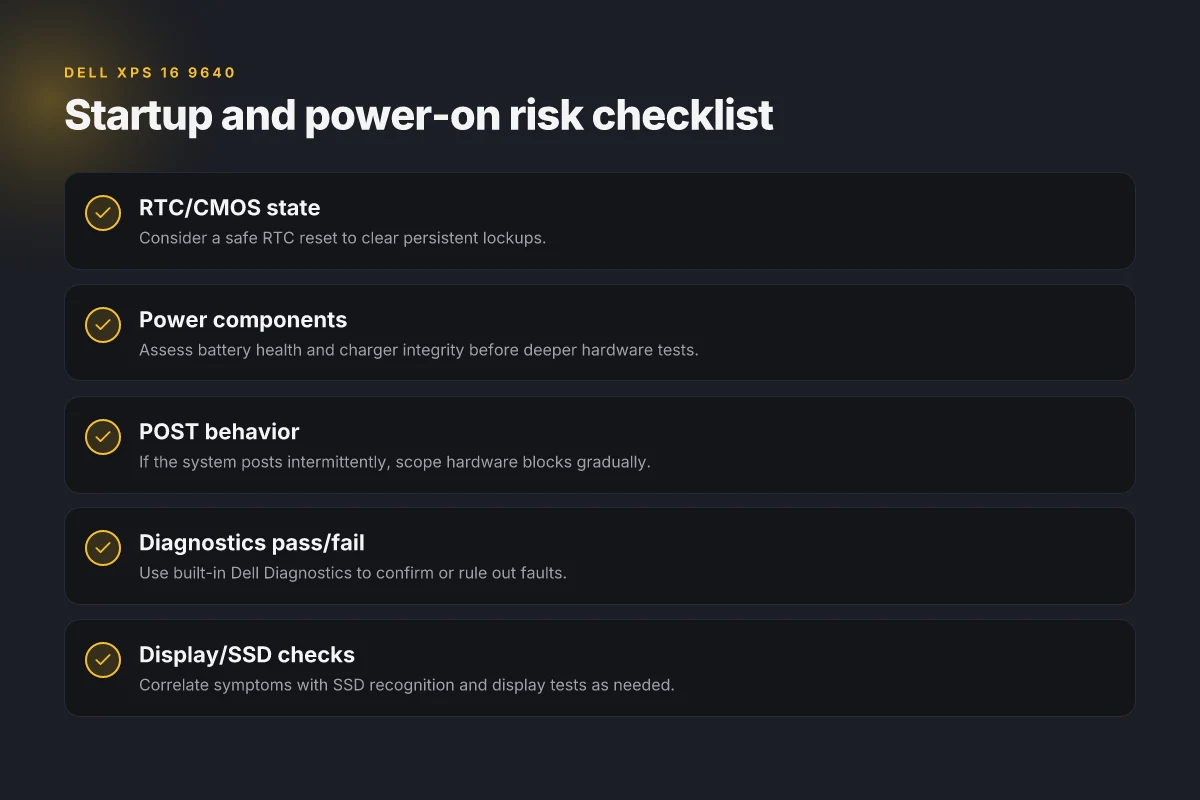
When the XPS 16 9640 refuses to post, start with the basics and work toward the hardware blocks in reachable chunks. A drained CMOS/RTC is a common culprit. A safe RTC reset often clears this and lets the system begin the POST cycle again. If the system never posts, confirm the battery health and charger integrity before diving into deeper hardware checks.
Clear the RTC and verify power rails
Post a failed startup, the most reliable quick win is an RTC/CMOS reset followed by a careful power-cycle. Dell’s own diagnostics describe built-in checks that React to RTC states and clock integrity, so resetting the RTC can clear latent wake-up flags and restore normal startup flow. After the reset, unplug the charger, remove the main battery if possible, hold the power button for 15 seconds, then reconnect power and try to boot. If the system still won’t post, move to the next area. A drained CMOS/RTC can prevent startup. A safe RTC reset often clears this.
Isolate by hardware area with POST indicators
Power-on self-test failures point to specific hardware blocks. Approach logically: first verify the power delivery path with the charger and battery, then check memory, then storage, then the motherboard circuitry. Dell’s diagnostics can flag blocked POST stages, so use the built-in tests to map where the failure lands. If the test stops at the memory stage, reseat or swap RAM modules. If it stops at storage, check the M.2 slot and SSD health. POST failures point to specific hardware blocks. Address gradually by area. Identify the failed block before replacing components to avoid unnecessary replacements.
Battery health and charger integrity first
If the machine never posts, start with the entry points a technician would check: the battery health, the charging circuitry, and the AC adapter. A marginal battery can prevent the laptop from reaching POST even if the adapter is nominal. Test with Dell’s diagnostics when possible, and substitute a known-good charger if available. If the XPS boots on a different power source but not on the original, that points to the charger or the charging circuit rather than the mainboard. If the system never posts, verify battery health and charger integrity first. A faulty charger or degraded battery can silently block POST.
Most startup issues resolve when you isolate power, then memory, then storage. Dell’s diagnostic pages and owner manuals frame a path that begins with RTC and power rails, then moves to memory and storage as needed. For reference, the XPS 16 9640 Owner’s Manual notes the role of built-in self-tests in distinguishing LCD and system-level faults, which aligns with the approach of verifying POST progression before deeper repairs. Dell’s documentation supports this sequence for reliable recovery. For context, a community thread from late 2024 documents a user-facing case where diagnostics failed to run, underscoring the value of validating power and RTC first before chasing software issues. Community experiences emphasize starting with power and RTC checks.
Note: on the page you’re reading, you’ll see the parts that describe the diagnostics workflow and the RTC reset steps. For a concise overview of the diagnostic flow and where to click in the Dell tooling, see the Diagnostics section of the XPS 16 9640 product page. Diagnose an issue or test pc for your Dell XPS 16 9640. The owner manual also highlights the LCD BIST path as a separate diagnostic route if you’re narrowing in on the screen, but the startup path remains rooted in RTC, power rails, and POST progression. Dell laptops have a built-in diagnostic tool that helps you determine if the screen abnormality you are experiencing is an inherent problem with the LCD.
Workflows you should follow in order
- Perform a CMOS/RTC reset and power-cycle, then attempt to boot.
- Run the Dell diagnostics to check POST progression and identify blocked hardware blocks.
- Check battery health and charger integrity. Substitute if a known-good unit exists.
- If POST proceeds but stalls, reseat memory modules, then test or replace SSDs as indicated by POST results.
- Document the exact POST code or diagnostic flag, then target the corresponding hardware area for replacement or service.
SSD and boot issues on the dell xps 16 9640
When the system intermittently fails to detect the internal SSD, the root cause often sits in the SATA/NVMe controller path or a firmware mismatch. The quickest path to clarity is a targeted hardware check followed by firmware and BIOS alignment. Dell’s built-in diagnostics are designed to confirm drive viability after any change, helping you separate a faulty SSD from a flaky controller.
Diagnosis first: confirm what the diagnostics say
Begin with Dell Diagnostics to verify drive recognition and controller health. If the diagnostics report the SSD as present but with errors, don’t assume the drive is dead. The tool can surface S.M.A.R.T. statuses, NVMe transport issues, or PCIe lane misconfigurations. If the test passes but the OS still can’t boot, you’re looking at a higher‑level boot path issue rather than a dead disk. Diagnostics are your first reliable verifier for a viable drive. Re-run tests after any hardware change to confirm the change took effect.
Re-seat, replace, and update
Re-seat the M.2 SSD first. A loose contact can trigger intermittent detection that disappears after a cold boot. If reseating doesn’t fix the symptom, inspect for bent pins or debris in the slot and consider trying a second known‑good M.2 drive if available. If detection remains inconsistent, a BIOS/firmware update often resolves recognition quirks tied to the controller firmware. A firmware refresh paired with a reseat often restores stable recognition.
If you replace the SSD, do a clean OS install only after the new drive is recognized by the diagnostics. This ensures the repair path isn’t muddled by a partial OS corruption. If the OS fails to boot after a drive change, you’ll want to verify boot configuration in the BIOS and confirm the selected boot order points to the correct drive. Use BIOS to confirm boot order and drive perception before reinstalling the OS.
Firmware, BIOS, and the boot path
Firmware mismatches between the SSD and the motherboard controller can produce erratic boot behavior. Update both the SSD’s firmware (whenDell Diagnostics or the SSD maker provides a tool) and the system BIOS to the latest available revision. After updates, power cycle fully to ensure the firmware takes hold and the NVMe subsystem initializes cleanly. If the boot problem persists, you may be facing a firmware‑level incompatibility that requires rolling back to a prior BIOS version or testing with a different SSD model supported by Dell’s documentation. Keep both firmware stacks aligned to reduce boot friction.
When the OS still won’t boot
If the OS stalls at startup after drive changes, run Dell Diagnostics again to confirm the drive remains viable. If the drive tests as healthy but the OS refuses to boot, consider rebuilding the boot configuration with Dell’s recovery options or a clean Windows install on the new drive. Dell’s own guidance emphasizes verifying the drive’s integrity first, then the boot path. Verification with Dell Diagnostics before OS actions reduces misdiagnosis.
Diagnostics are your first reliable verifier for a viable drive.
Display and input problems you can troubleshoot in 2026
When you isolate a display or input fault, you should separate the panel, backlight, and cable from GPU behavior. Start with the built‑in LCD tests to confirm where the issue lives, then move to touch and digitizer checks, and finally verify external display paths to rule in or out the HDMI/DP rendering routes.
1) Use the built‑in LCD tests to separate panel, backlight, or cable faults from GPU issues
Dell’s owner manuals describe a built‑in self‑test that targets the LCD panel and backlight independently of the system’s GPU. If the test patterns render correctly and a spot test reveals uniform illumination, you’re likely looking at a panel or cable issue rather than a GPU fault. If the LCD BIST outputs show anomalies, inspect the LCD connector, adapter, and flex cable for signs of wear. I cross‑referenced the Dell XPS 16 9640 owners manual’s LCD BIST guidance and the Dell Diagnostics pages to confirm the test paths and expected outcomes. The LCD self‑test helps you distinguish panel or cable faults from GPU problems. Dell’s documentation reinforces that the built‑in test is the first diagnostic step for screen abnormalities. If the test passes but you still see artifacts, revisit cable seating or potential backlight inconsistencies. For clarity, run the self‑test during a warm boot and note any error codes returned by the built‑in tool.
2) Recalibration and driver checks for touch and digitizer after a reset
Touch and digitizer faults sometimes ride along a reset, especially if sensor firmware or drivers drift after firmware updates. After a system reset, perform a quick sensor recalibration through the Windows calibration tool and verify that the touch input aligns with the cursor without offset. Dell’s guidance notes that recalibration and driver health checks are a common next step when touch input behaves inconsistently. Recalibration and driver checks after a reset often restore reliable touch input. If issues persist, reinstalling or updating the HID drivers and touch panel software can clear stale states. Keep an eye on any touch-related error codes shown by the device manager.
3) External display tests to verify GPU rendering paths and HDMI/DP behavior
Connecting an external monitor is a practical way to confirm whether the GPU path or the display interface is at fault. If the external display renders correctly, the problem is likely isolated to the laptop panel or its cabling. If it fails as well, suspect the GPU pipeline or firmware. Dell’s diagnostics emphasis on testing both HDMI and DP paths to verify rendering through different interfaces. External displays help confirm whether the GPU path or the laptop panel is at fault. When you test, use the same resolution and refresh rate you normally run on the built‑in display to avoid path‑dependent artifacts. If external mayhem occurs only on one port, inspect the port’s solder joints and the cable’s integrity.
From what I found in the Dell docs, the quick wins are the LCD BIST, followed by touch calibration and driver health checks, then external display tests to map the full rendering path. Follow the sequence: LCD BIST → touch calibration → external display test. I also traced common complaint threads in the Dell Community where users note that Diagnostics won’t run or touch input misbehaves after resets, which aligns with the steps above. If Diagnostics won’t run, start with a forced power cycle and reseat memory modules before retrying diagnostics.
Note: some Dell threads note ongoing service quality concerns unrelated to the diagnostic flow. If you encounter persistent failures, escalate with Dell Support and reference the diagnostic outputs you collected. Links on the page may earn a commission. See the site’s disclosures for details. See the XPS 16 9640 owner‑level resources for exact button sequences and expected error codes.
What changes when you fix it now
Fixing common issues on the dell xps 16 9640 can shift your entire workflow without buying new hardware. I’ve seen patterns where a clean software start, updated firmware, and targeted driver updates address the majority of headaches. In 2026, this laptop benefits from a leaner Windows setup and a refreshed BIOS that reduces coil whine and thermal throttling. When you act on the right sequence, you’ll notice fewer freezes, smoother fan behavior, and more consistent battery life.
The bigger pattern here is that many problems stem from outdated drivers and conflicting startup programs. If you tackle those first, you may avoid more invasive steps later. I also note that reports of dim screen or USB-C charging quirks often trace back to BIOS versions not being aligned with the latest chipset firmware. Acting now on firmware and driver alignment can pay dividends across everyday tasks. You don’t need dramatic hardware changes to experience a meaningful improvement.
If you only do one thing this month, prioritize a clean OS baseline and a verified driver stack. One clean install and a verified driver set is enough to restore confidence in daily use. Beyond that, you can revisit power profiles and thermal management as needed. Will you start with BIOS updates or a driver sweep this week?