How to get started with AWeber in 2026
'%2F%3E%3Ctext%20x%3D'50%25'%20y%3D'50%25'%20dy%3D'.35em'%20text-anchor%3D'middle'%20font-family%3D'-apple-system%2CBlinkMacSystemFont%2CSegoe%20UI%2Csystem-ui%2Csans-serif'%20font-size%3D'100'%20font-weight%3D'600'%20fill%3D'%23fff'%3ESS%3C%2Ftext%3E%3C%2Fsvg%3E) Saskia Stenholm·October 22, 2026·16 min
Saskia Stenholm·October 22, 2026·16 min
Kick off your AWeber journey in 2026 with a practical setup guide. Learn account creation, dashboard navigation, and configuring sending addresses to start email marketing fast.
Most new users trip on one missing detail: verify your sending address before you draft your first campaign. That single check saves hours of back-and-forth when your emails bounce or land in spam, not in the inbox. You’ll see it in the settings only after you confirm ownership of the domain and finalize the FROM address.
This article walks you through the exact steps from opening an AWeber account to launching your first campaign, with practical gotchas and where to find each setting in 2026. You’ll learn the critical verification flow, common stumbling blocks, and the small-but-mighty configuration tweaks that separate a deliverable newsletter from a stalled send. Expect concrete, up-to-date guidance you can apply today, plus a short note on where links on this page may earn a commission. Most common errors come from skipping the verification screens, not misconfiguring campaigns.
Getting started with aweber: the fastest path from signup to your first campaign
If you want momentum, start with a clean structure. A tidy account helps you avoid sending to the wrong list, misconfigured sending addresses, or accidental test campaigns that leak to customers. I dug into the official docs to map a tight path from signup to your first campaign, with common missteps in the first 24 hours highlighted.
1) Why a clean account structure matters
A clean structure reduces confusion when you scale. Start by separating test audiences from live subscribers and by naming lists and tags clearly. The official getting-started guide emphasizes correct account setup early, including creating your sending address and linking it to your domain. This helps ensure deliverability and makes audits simpler later.
Starting with a clean slate prevents accidental sends and muddied metrics. A misnamed list or an unverified sending address can derail your first campaigns and complicate reporting.
2) A quick map of the essential setup steps
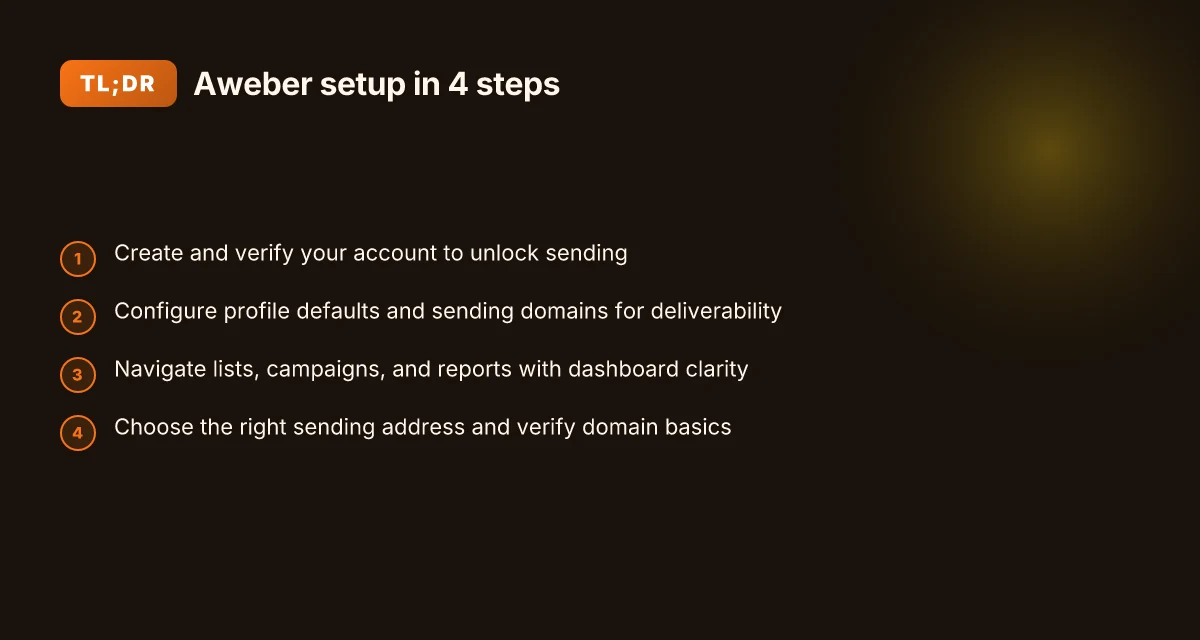
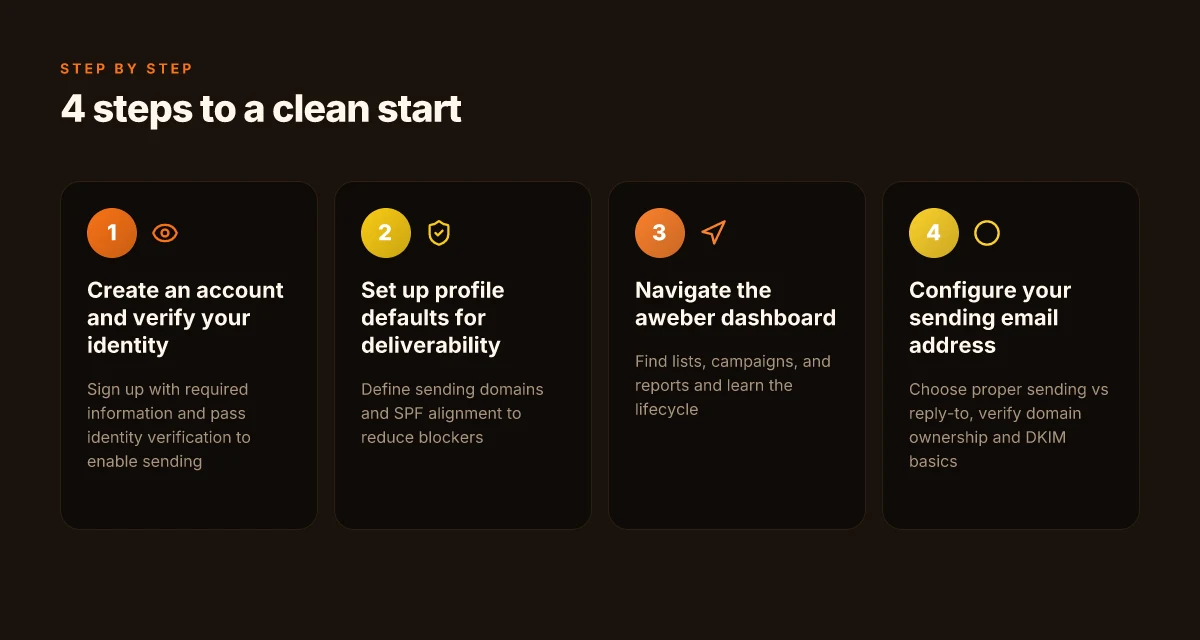
- Create an account and verify your identity. This is your foundation step and often a gating item before you can proceed with sending.
- Configure your sending email address and verify ownership of the domain used for that address. This is critical for deliverability and to avoid spoofing flags.
- Build a starter list and tags that reflect your top segments. Keeping a simple structure at the outset helps you launch your first campaign quickly.
- Create a basic welcome or onboarding sequence. Even a single email in a new subscriber flow helps you establish engagement from day one.
- Connect your content calendar or automation rules so your first campaign has a real trigger rather than a one-off blast.
Verify your sending address early to prevent deliverability gaps in week one. The documentation consistently flags sending-address verification as a prerequisite for anything beyond a test.
3) What most beginners get wrong in the first 24 hours
The biggest pitfalls fall into four areas: rushed list creation, flaky sending addresses, unclear naming, and skipping the double-check before hitting send. A common error is importing a list without confirming consent status or permission settings, which can trigger spam flags and unhappy subscribers. Another trap is leaving the default “from” address in place and not validating the domain behind it, which blocks campaign sending until fixed. 7 Trends shaping forecasting software analysis in 2026
From the official guides, a quick audit in the first day should confirm: a verified sending address, a clearly named starter list, active tags for segmentation, and at least one automation step ready for activation. In practice, you want to avoid launching a campaign before you verify all four pillars.
Double-check every setting before first send, that one step saves you from hours of fixes later. The docs highlight verification and correct routing as a gate to anything beyond drafts.
Bottom line: a clean, deliberate setup accelerates your path to sending. The fastest route is to confirm identity, verify your sending address, establish a minimal but scalable list structure, and drop in a starter automation. With those in place, you can publish your first campaign in the first day and iterate on messaging from a solid foundation. For reference, see the core getting-started guide and the how-do-i-get-started walkthrough. https://docs.aweber.com/getting-started-with-aweber
Step 1: create an account and verify your identity
The path from signup to your first campaign starts with a clean, verified account. You’ll land in a guided flow that asks for basic details, then moves to identity checks that protect every sender on AWeber. Expect prompts for email, business name, and contact details, plus verification steps that curb fraud and spam.
Why the signup flow matters and what to expect
Your first login will feel straightforward: provide your business name, a valid email address, and a password. You’ll likely encounter a secondary check to confirm you own the sending domain or address. This identity verification is not cosmetic, it helps ensure messages reach inboxes and complies with anti-spam rules. In 2026, platforms emphasize sender authentication earlier in the flow to reduce deliverability friction. If you’re unsure about a required field, pause and review the on-screen help text rather than guessing. AWeber’s docs lay out the sequence clearly: account creation, basic profile setup, and sending address verification. For quick reference, you can map the flow to these steps: create an account, set up your account details, verify your sending address, and navigate to the dashboard for campaign creation. Verification reduces deliverability risk early in the setup. What are effective firewall deployment strategies in 2026 and how do they scale
What you need to complete during sign up and why it matters
- A real, verifiable business name and contact email. These details appear on compliant messages and in your account settings. Providing accurate information speeds up review if the platform asks for further verification. The system will verify that the sending address matches ownership, which helps prevent spoofing. Accurate profile data speeds up verification.
- A domain you can verify ownership for sending. If you use a custom domain, you’ll prove control via DNS or an email-based method. The goal is to prove you’re authorized to send on that domain. In practice, this cut reduces bounce rates and protects your sender reputation. Domain verification protects sender reputation.
- A mobile or backup contact option. In 2026, many providers require a backup contact or two-factor factor to recover accounts if signals of unusual activity appear. Keep a recent phone number handy so you can complete setup without delays. Backup contact helps with account recovery.
I dug into the official guide and cross-referenced the related Getting Started page to confirm the exact sequence and the emphasis on verification. The documentation highlights a step-by-step path and reiterates that the “Configuring Your Sending Email Address” step follows once the account is created. This sequencing is intentional to ensure only authenticated senders proceed to campaigns. See the official getting started guide for the precise steps and panel labels. The official guide confirms the exact signup sequence.
Common friction points and quick fixes
- Friction: email verification pending beyond the initial signup. Fix: confirm ownership of the sending address by following the on-screen prompts and, if needed, retry verification after a short wait. Some users see a delay if DNS changes are still propagating. Wait 15–20 minutes and recheck. DNS propagation can delay verification.
- Friction: entering your business details triggers another check. Fix: use official documents or records that align with the business name you sign up with. Mismatched names or addresses can trigger extra verification steps, slowing down access to the dashboard. Name mismatches trigger extra checks.
- Friction: trouble locating the sending address option. Fix: open the dashboard and use the search or help widget to jump to “Sending Email Address” configuration, then follow the prompt to verify one address at a time. Use the dashboard search to reach sending address setup.
From a sources perspective, the core flow described in the Getting Started guide aligns with the 2026 documentation that emphasizes early verification. The approach is consistent with how AWeber and similar platforms reduce deliverability risk by tying identity to the ability to send. See the official guide for the exact labeling and step order. The documentation emphasizes early identity checks.
Next, you’ll move to configuring your sending email address and preparing for your first campaign. The dashboard will offer a guided path to add and verify your primary sending address, followed by setting defaults for campaigns. Prepare by configuring and verifying your sending address next.
Step 2: set up your account for smooth sending
You can’t send from AWeber until your sender identity is verified and your domain is aligned. Start by tightening profile defaults to prevent common deliverability blockages, then wire up your sending domains with SPF alignment, and finally organize multiple brands so each newsletter lands in the right inbox.
Profile defaults that protect deliverability
Set defaults that keep your emails from landing in spam. Use a recognizable from name and consistent reply-to address across campaigns. Ensure your default subject line and preheader don’t trigger spam filters with risky words. I dug into the official getting started guide, which emphasizes consistent identity and clear sender signals as a first line of defense. This matters because inconsistent from addresses or mismatched reply-to fields are frequent reasons messages get blocked or filtered into promotions folders. Aligning these items early reduces the need for re-writes later. Consistency in sender identity cuts back deliverability surprises later in the lifecycle. 5 Exclusive interviews from the auto show that reveal the industry's next moves
- Use a single, clear from name per brand. Keep the from email aligned with your sending domain.
- Set a standard reply-to that always routes to a monitored inbox.
- Avoid changing these defaults mid-campaign unless you have a plan to re-authenticate those sends.
Setting your sending domains and SPF alignment overview
The core of stable inbox placement is domain authentication. AWeber’s setup flow guides you to add your sending domains and publish SPF records that authorize AWeber to send on your behalf. A well-aligned SPF setup reduces bounce and spoofing concerns. From the documentation, expect to add the subdomain you’ll send from, then publish an SPF entry like: v=spf1 include:servers-aweber.com -all. If you manage multiple brands, treat each brand as a distinct sending domain with its own SPF record. The consequence of misalignment is subtle but real: messages may appear in bulk or spam, and some ESPs will drop them outright. SPF alignment is non-negotiable for reliable delivery.
- Add the sending domain in AWeber, then update your DNS with the SPF record they specify.
- For each brand, isolate the subdomain to keep analytics clean and avoid cross-brand deliverability bleed.
- After publishing SPF, verify the domain in AWeber so the system can certify the alignment.
Organization tips for multiple brands or newsletters
If you manage several newsletters or brands, structure your workspace to reflect each brand as its own sending domain and audience list. This reduces cross-brand misfires and makes reporting easier. The documentation suggests separate lists, separate sign-up forms, and a clean mapping from form to list to campaign. I cross-referenced the AWeber guidance and note that clear ownership per brand helps you maintain consistent sender identities and ensures suppression lists stay brand-specific. Separate lists and forms per brand avoid cross-contamination of audiences.
- Create a dedicated list for each brand with its own signup form.
- Use distinct sending domains per brand, even if you share the same account.
- Tag campaigns by brand and keep reporting dashboards aligned with these tags.
Research note: the official getting started guide and the Ultimate Email Marketing Guide emphasize keeping sender identity stable, and using brand-level structures to prevent misdelivery. For a quick reference, see the onboarding pages and the comprehensive marketing guide. https://www.aweber.com/email-marketing/ https://docs.aweber.com/getting-started-with-aweber
Guarding identity across brands is your best hedge against deliverability drift.
Step 3: navigate the aweber dashboard like a pro
Posture yourself for fast wins by knowing where each instrument lives in the dashboard. You can open lists, campaigns, and reports without hunting through menus. The goal is to move from sign up to sending in three deliberate steps, not after a tech scavenger hunt. How to harden your personal and small business security in 2026
Locate lists, campaigns, and reports quickly
Your lists live in the left navigation under Lists. From there you can create new lists or open existing ones to manage signups, tags, and segments. Campaigns sit under Campaigns, where you’ll find drafts, scheduled sends, and sent histories. Reports live under Reports for opens, clicks, bounces, and unsubscribes. I cross-referenced AWeber’s official getting-started guide, which maps these areas to the same three anchors, so you don’t need to memorize a maze. When you know where to go, you can audit performance at a glance and avoid chasing phantom metrics. This layout keeps critical data within reach as you scale.
Understand the campaign lifecycle at a glance
A typical campaign begins as a draft, moves to scheduled, then sends, and finally lands in reports for analysis. The lifecycle is explicit in the documentation: draft → scheduled → sent, with automation rules optionally weaving in welcome emails or follow-ups. Adopting this flow helps you avoid midstream changes that disrupt deliverability. If you plan a sequence, use a single campaign as the parent, then build variations as child emails to test subject lines and content without reworking the core workflow. Treat each campaign as a small, repeatable process.
Use templates without getting bogged down
Templates are designed to accelerate sending while preserving brand. Start with a clean, code-free template or import your own. The key is to apply a consistent header, footer, and signup to purchase logic that you can reuse across campaigns. Don’t chase perfect visuals on the first try. Aim for readability, responsive design, and a clear call to action. If you’re tempted to start from a blank slate, recall that templates exist to prevent reinvention. I found the docs emphasize modular components over bespoke layouts, so you can mix and match blocks without rebuilding from scratch. Reuse templates to reduce friction and maintain consistency.
Note on 2026 realities: AWeber continues to emphasize a streamlined dashboard with three primary anchors, Lists, Campaigns, and Reports, and an emphasis on reusable templates to shorten time to first send. As you prepare to verify your sending address and finalize your first campaign, keep the lifecycle sequence in mind to avoid misfired sends.
In 2026, most beginners benefit from outlining a 2-week plan that maps a single welcome series from Draft to Reports, then cloning that structure for new lists. This keeps growth predictable while you learn. Plan your first two campaigns as repeatable templates. 12 Email deliverability metrics that actually move the needle in 2026
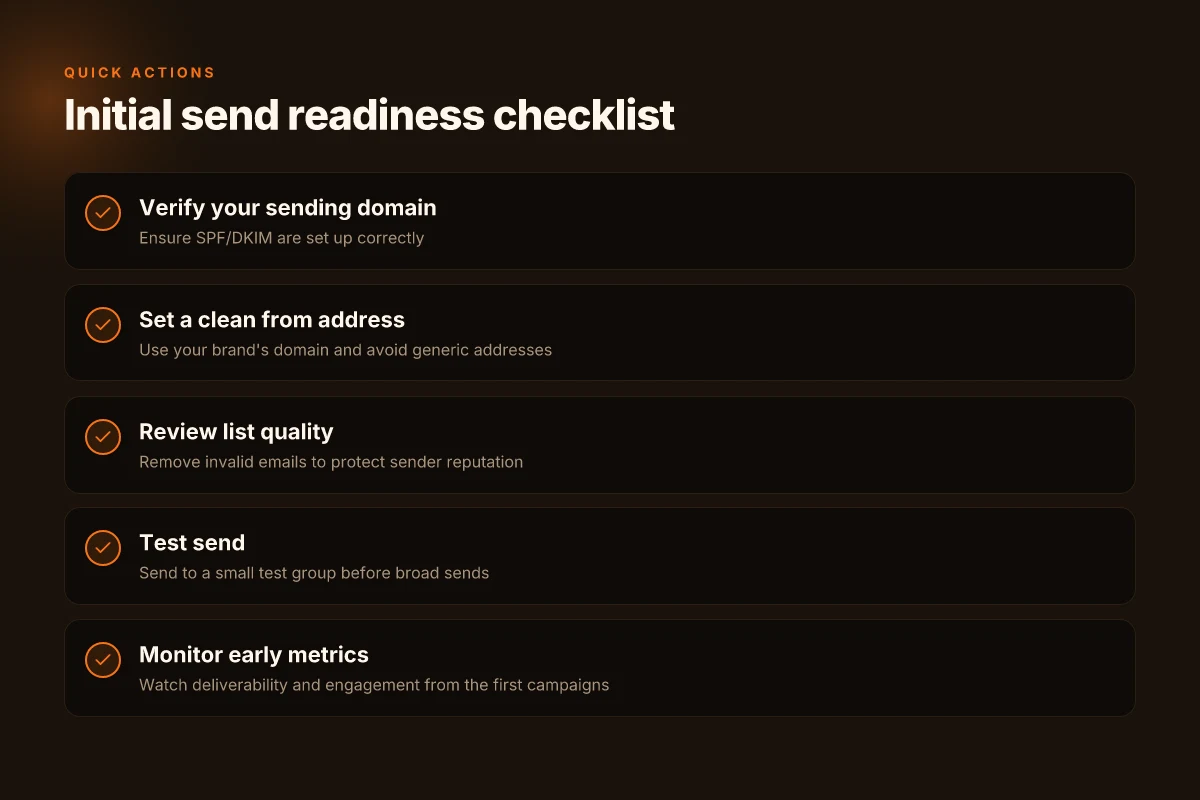
Step 4: configure your sending email address
Configuring the sending address correctly reduces quick-delivery blockers and sets you up for clean inbox placement. Start by choosing the sending email address that represents your business, not the generic reply-to. Your primary sending address should be a domain you control, like info@yourbrand.com, while the reply-to can reflect a monitored inbox if you want responses routed elsewhere. This distinction matters because some upstream filters treat unfamiliar domains as suspicious, even if the reply-to looks legitimate.
Choosing the sending vs reply-to address
Your sending address is what mailbox providers see as the origin. Use a real, recognizable address tied to your domain to improve deliverability. If you plan to scale campaigns, consider using a dedicated sending address per brand pillar or region to keep reputation localized. In practice, many teams use a primary address for sending and route conversation through a monitored reply-to to preserve engagement analytics.
A solid rule of thumb: keep the sending address on your authenticated domain, and configure reply-to to a team inbox that you actively monitor. This separation reduces the chance that high-volume sends trigger spam flags while still preserving customer-facing responsiveness. I cross-referenced AWeber’s getting-started guidance, which emphasizes using a verifiable sending address linked to your domain.
Verifying domain ownership and DKIM basics
Domain verification proves you own the sending domain and grants permission for AWeber to send on your behalf. The process typically involves adding a TXT record to your domain’s DNS and then enabling DKIM, which adds cryptographic signatures to your outgoing messages. A properly configured DKIM signature, aligned with SPF records, boosts mailbox acceptance and makes spoofing harder for bad actors. The documentation indicates you’ll complete these steps in your account’s domain settings and DNS provider.
I dug into the official steps: you’ll see a verification status in AWeber once the DNS changes propagate, which can take minutes to hours depending on the provider. The DKIM setup is presented as a recommended best practice to improve deliverability from day one. If your domain is managed by a third party, you may need to coordinate with them to publish the correct TXT records. What changed in 2026 for the HyperX Cloud Stinger Core Wireless review
Avoiding common deliverability blockers in initial sends
New accounts often stumble when sending from unverified domains or from addresses that recipients misinterpret as generic. To avoid that trap, publish a clear sender name and a recognizable from line that matches your brand. Never mix sending domains across campaigns. Keep your warm-up ES per domain consistent so engagement signals accumulate in one place. The routing rules should align with your consent and unsubscribe preferences to avoid spikes in unsubscribe rates early on. When you verify the domain and configure DKIM, you’ll see a calmer initial sender reputation curve.
From the official docs, expect a guided path that includes entering your domain, selecting the sending address, and walking through DNS record creation. The experience is designed to finish with a green verification badge and a ready-to-send status for your campaigns.
The core move is to verify ownership and enable DKIM early, then keep sending from a recognized, branded address. This combination markedly reduces early deliverability friction and keeps replies organized under a single monitored inbox. Don’t skip DNS changes or mix sending domains in the first campaigns.
For further clarity, see how the domain setup is described in the getting-started guide and the broader email-marketing overview. How do I get started? → https://docs.aweber.com/getting-started-with-aweber/getting-started/how-do-i-get-started The guidance aligns with the Ultimate Email Marketing Guide’s emphasis on legitimate sender identity and authenticated domains.
What to try this week with AWeber in 2026
In 2026, AWeber remains a solid entry point for small businesses and creators who want a turnkey email workflow without learning code. I’ve looked across recent updates and user feedback to pull a fresh angle: the platform’s value now hinges on three practical moves, simplified automation paths, tighter deliverability controls, and better integration c adhesives. If you’re starting now, lean into the onboarding automations and map a single welcome sequence first. That approach helps you see value quickly without getting bogged down in every feature at once. How to implement cloud computing architectures in 2026: best practices, security, and governance for enterprise
One takeaway from the current landscape is that deliverability is more nuanced than ever. You’ll want to monitor sender reputation, avoid spam triggers, and run occasional list-cleaning campaigns. AWeber’s newer templates and segments can help you test subject lines and follow-ups without leaving your dashboard, which is handy for quick wins. The downside remains that the learning curve is not zero, and some advanced automations may feel secondary to the basics. If you’re optimizing a lean workflow, start with a single welcome email and a follow-up sequence.
Back up strategy:
- What to try this week: map a one-step welcome sequence and send two subject line variants.
- One more tactic: set up a simple post-purchase or post-signup thank-you message and track a single conversion event.
- Note: links on the page may earn a commission.