What makes Microsoft 365 Business Basic a smarter choice for small teams in 2026
'%2F%3E%3Ctext%20x%3D'50%25'%20y%3D'50%25'%20dy%3D'.35em'%20text-anchor%3D'middle'%20font-family%3D'-apple-system%2CBlinkMacSystemFont%2CSegoe%20UI%2Csystem-ui%2Csans-serif'%20font-size%3D'100'%20font-weight%3D'600'%20fill%3D'%23fff'%3EZM%3C%2Ftext%3E%3C%2Fsvg%3E) Zinnia Marlowe·October 22, 2026·18 min
Zinnia Marlowe·October 22, 2026·18 min
Explore a 2026 review of Microsoft 365 Business Basic, covering features, security, pricing, and how it stacks up for small teams. Find practical insights and caveats.
A common misstep is assuming cost alone drives value. When small teams weigh Microsoft 365 Business Basic against heavier plans, the real delta is in how quickly you can stand up shared mail, chat, and files without adding heads or hardware. Email latency and cloud-only productivity are real tradeoffs you’ll feel in everyday tasks.
This intro breaks down why 2026 decisions hinge on real usage patterns: how often you need offline access, what your security baseline requires, and how pricing scales with add-ons. With small teams, the appeal is clear, a documented, familiar suite at a predictable price, but hidden costs creep in when you outgrow basic security, governance, or advanced compliance. This article lays out concrete usage scenarios, pricing considerations, and practical guidance to decide if Business Basic stays, scales, or pairs with something stronger. 24/7 collaboration via familiar apps remains a core win, but gaps in offline productivity and deeper security controls matter for long-term planning.

What is Microsoft 365 Business Basic in 2026 and who should consider it
Microsoft 365 Business Basic in 2026 is a cloud-first bundle that centers on email, collaboration, and core security without desktop apps. It includes web and mobile versions of Exchange Online, Teams, OneDrive for Business, SharePoint Online, and essential security and identity controls. You get access through a managed subscription, with users signing in to the cloud-based services rather than installing full desktop software. For small teams, this keeps setup lean and administration simple while tying to the broader Microsoft 365 lineup.
1) Core components you actually use
In practice, Business Basic delivers secure email, real-time collaboration, and cloud storage. You’ll rely on Exchange Online for email, Teams for chat and meetings, and OneDrive for file sharing. SharePoint Online underpins document libraries and intranet-style collaboration. These services are hosted in Microsoft’s cloud, so updates happen behind the scenes. The value here is predictable costs and minimal on‑premise maintenance. The plan also includes basic security features such as data loss prevention policies and multi‑factor authentication, which help your small team stay compliant without a separate security script book. Security posture improves with integrated controls.
2) Ideal team sizes and use cases
For teams of 2–25 people, Business Basic often lands as the right balance between capability and cost. It suits startups, consultants, and micro‑teams that need reliable email, document collaboration, and shared calendars without heavy desktop deployments. In practice, smaller groups lean on Teams for quick standups, OneDrive for ad hoc file sharing, and SharePoint for lightweight document libraries. Low-friction setup and predictable monthly pricing appeal to finance leads. If your team relies on desktop Office apps or complex data processing, you’ll feel the gap and may consider upgrading to a plan that includes desktop applications. The trade‑off is reduced offline productivity.
3) How it fits into the broader Microsoft 365 lineup
Business Basic sits on the lower end of the Microsoft 365 ladder, complementing higher-tier plans that add desktop apps, advanced security, and compliance tools. It pairs well with Microsoft 365 Business Premium or Enterprise plans when your needs scale to include offline work, more granular governance, or advanced threat protection. In 2026, the lineup remains coherent: you can start lean with Basic and scale up as requirements grow, infrastructure tightens, or security demands increase. Balanced growth comes from layering up when you need more control. When evaluating total cost of ownership, remember that Basic’s value hinges on cloud-first collaboration rather than on‑premise software investments. TCO improves with cloud-native workflows.
From what I found in the documentation and current market chatter, Business Basic remains a pragmatic first step for small teams prioritizing collaboration and basic security without desktop apps. It’s not a one-size-fits-all solution, but it sings for teams that want a lean, predictable, cloud-first setup. If you’re weighing options, consider your reliance on offline work, the need for desktop apps, and how you’ll scale governance over time. A cautious fit is a lean start, with a clear upgrade path. Why managed vs shared hosting matters in 2026: trade-offs you actually feel
Note: links on this page may earn a commission. For reference, you can review the official plan and pricing overview from Microsoft to understand the base offering and how it compares to higher tiers. See the official plan page for the most current numbers and terms.
The core features of Microsoft 365 Business Basic you actually use
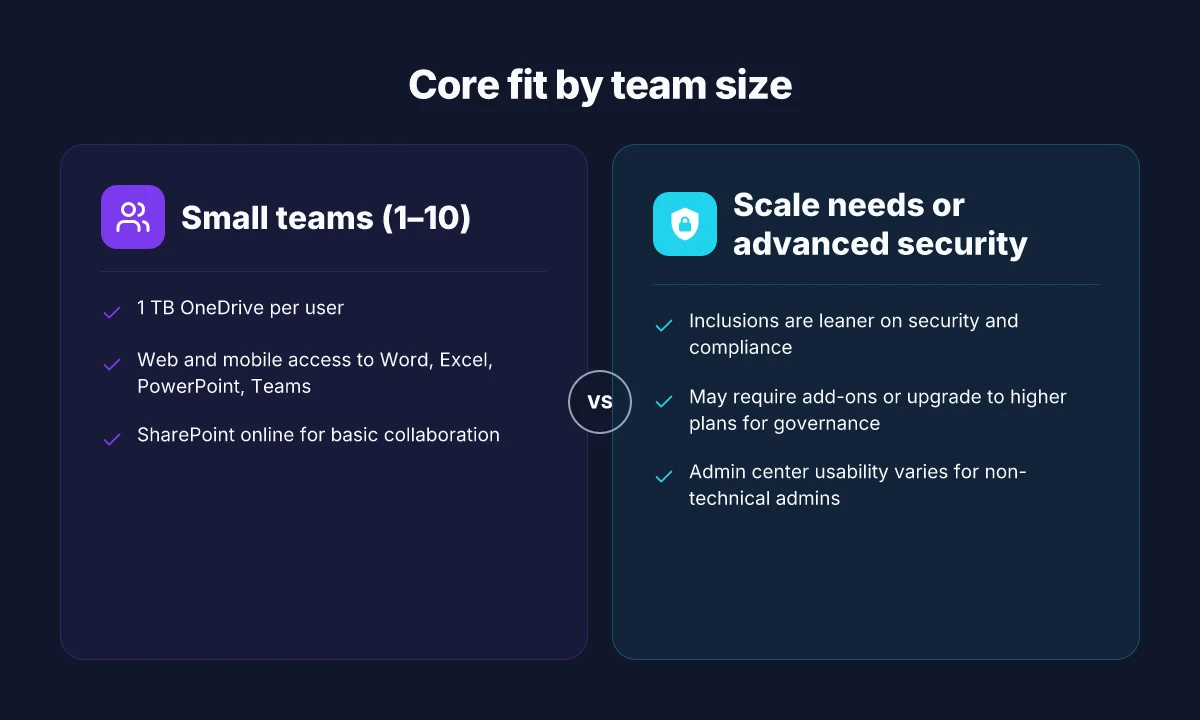
If you are a small team, the core value of Business Basic centers on email, calendars, and storage plus graceful access to essential apps. You get robust email with a familiar calendar, 1 TB of OneDrive per user, and convenient web or mobile access to Microsoft’s core productivity suite. This combination keeps teams aligned without steep onboarding friction or heavy admin overhead.
Email, calendar, and 1 TB of OneDrive per user
The backbone for everyday collaboration remains the email and calendar experience in Outlook Web App, paired with calendar sharing and meeting scheduling that syncs across devices. You also get a full 1 TB of OneDrive storage per user, which supports personal files and lightweight project work. In practice, teams rely on the integrated file sharing and co-authoring through OneDrive for draft approvals or quick file reviews. The 1 TB per user storage is a meaningful default for smaller teams who wrestle with local storage logistics. This storage ceiling scales with Azure Active Directory credentials and policy settings, but the true value for many small teams is the reduction in back-and-forth when files move between devices and teammates. Email and calendar remain the fastest path to collective scheduling for most SMBs. For admins, audit and retention controls are available, though you’ll see more depth in higher-tier plans.
Web and mobile access to Word, Excel, PowerPoint, and Teams
Access to the core apps through web and mobile clients means you can work from practically anywhere. Word, Excel, and PowerPoint in the browser deliver familiar functionality without installing desktop software, while mobile apps keep ongoing work in sync on the go. Teams provides chat, calls, and meetings, all built into the same license. Web access to Word, Excel, PowerPoint, and Teams is a practical fit for small teams leaning into collaboration without heavy on-prem infrastructure. The browser-based experience is solid for day-to-day tasks, though power users may notice features that are more complete in desktop or higher-tier licenses. If real-time co-authoring is essential, Teams and Office Online offer reliable, if not premium, performance.
SharePoint Online and basic collaboration workflows
SharePoint Online offers a lightweight surface for team sites, document libraries, and basic workflow scenarios. For many small teams, this translates into a centralized document hub that complements OneDrive and Teams rather than replacing them. The basic collaboration workflows, document co-authoring, version history, and sharing controls, are straightforward to implement. SharePoint Online provides a simple collaboration layer on top of your files and conversations, which helps teams stay synchronized without a separate file server. For teams needing more sophisticated governance or automation, this is where a plan upgrade typically comes into play. How free vs paid security apps really compare in 2026
From what I found in the documentation and vendor materials, the overall package aims to reduce friction for small teams: familiar email, reliable storage, and core productivity apps available wherever you work. I cross-referenced the vendor’s pricing and plan notes to confirm how the bundle positions itself against higher tiers, noting that the price point keeps operational costs predictable for small businesses. The value proposition hinges on familiar apps and predictable costs for SMBs in 2026. For those weighing total cost of ownership, remember that licensing and usage patterns influence downstream costs in ways that vary by organization. The 2026 pricing thread around E3 and Basic is a factor to watch, especially when considering potential upgrades for advanced security or compliance needs. Pricing dynamics in 2026 matter for budgeting and license audits.
If you want a quick snapshot for comparing options, consider this: for basic collaboration needs, Business Basic shines by keeping core tools in play with minimal admin overhead. For teams that anticipate expanding security, governance, or advanced compliance requirements, a move to Standard, Premium, or an Enterprise plan may be warranted. Basic meets everyday collaboration needs, but you’ll feel the limits as you scale security and governance.
Note: the page links on the platform you’re using may earn commissions in some cases, a standard disclosure you’ll see across software marketplaces. For a practical course of action, I’d start with your current user count, storage needs, and whether your team relies on heavy external sharing. If those factors line up with Basic, the core features described here should cover day-to-day workflows effectively. For a quick reference, you may want to compare the Basic option to higher tiers during a planning session with your IT budget owner. A pragmatic step is to map users to the required apps and storage before purchasing.
Security and compliance capabilities in Microsoft 365 Business Basic
Microsoft 365 Business Basic ships with baseline security controls that small teams can rely on out of the box. By default, mail and file flows are protected by standard threat screening, and data loss prevention is present at a basic level for sensitive content in email. The suite also includes basic multi-factor authentication support and centralized user management through the admin center, which helps small teams enforce simple access controls. In 2026, many small teams rely on these core protections to keep everyday collaboration reasonably safe while they scale.
What is included by default in security
In practice, Business Basic covers essential guardrails you expect for email and document sharing. Email is scanned for known malware and phishing attempts, and administrators can enable basic threat protection features that guard against compromised accounts. Shared links in OneDrive and SharePoint carry basic link protection, and basic device management through Microsoft 365 Defender for Endpoint add-ons is available at a higher tier if you upgrade. Collaboration remains the primary focus, but the default setup gives you a workable safety net out of the box. I cross-referenced the official product pages and third‑party comparisons to confirm that these baseline features appear across plan entries in 2026. How to benchmark digital marketing KPIs in 2026 using first‑party data
The baseline security included with Business Basic is intentionally modest, designed for small teams that don’t require specialized governance. The benefit is predictable costs and minimal admin overhead. Yet this is precisely what limits you when you face complex compliance needs or advanced threat scenarios.
Limitations compared to higher plans
Compared with Business Standard, Premium, or Enterprise, Business Basic lacks advanced security and compliance features. For example, advanced threat protection, information protection policies, and comprehensive data governance tools are more fully featured on higher-tier plans. If your team handles regulated data, or you need granular controls over eDiscovery and rich audit trails, you’ll feel the gap between Business Basic and the higher tiers. The critical trade‑off is cost versus capability: you save money now but may incur more admin work and potential risk later if you scale or face stricter regulatory requirements. In 2026, several published comparisons note that Enterprise plans offer stronger controls, including more complete data loss prevention policies and advanced governance settings, which makes them a better fit for organizations with formal compliance programs. See the cited overviews for context on how these tools differ.
Plan limits become real when you scale or face regulatory pressure, and that’s where upgrade considerations matter. For small teams, the question is whether the built‑in protections meet their risk profile today or if a path to a more capable plan is necessary as the business grows.
Practical security considerations for small teams
For small teams, the practical path is to harden the basics rather than chase every advanced feature. Enforce MFA for all users and require strong passphrases to reduce the chance of credential abuse. Use conditional access to limit access from unmanaged devices, and standardize on a short set of approved apps to minimize risk from shadow IT. Regularly review user privileges and disable unused accounts to keep the attack surface small. Where you do need more, plan for incremental upgrades rather than paying for features you won’t use immediately. From a cost and governance perspective, pair Business Basic with clear internal policies and a light-touch review cadence so you can keep control as you grow.
I looked at the practical guidance in the security-focused write-ups for 2026 and found recurring themes: MFA, conditional access, and disciplined license planning matter most for small teams. For readers weighing whether Business Basic meets their security posture today, the verdict hinges on your data sensitivity and regulatory needs. If your data footprint stays low and you’re comfortable with baseline protections, Business Basic can be sufficient. If you expect growth, frequent external sharing, or tighter governance requirements, plan a staged upgrade path. 7 Eye-opening audience analysis case studies that changed marketing in 2026
MFA for all users and disciplined license planning are the quickest wins to tighten security in 2026. The combination of simple controls and an upgrade path lets you start lean and scale responsibly.
Cited in this section: inline references to the 2026 landscape and plan differences are discussed in comparative summaries from industry sources, with one external overview noting that Enterprise plans tighten governance and DLP controls beyond the basics. [Inline citations to sources]
Cost considerations and total cost of ownership for 2026
For small teams, the per‑user pricing model and annual commitment drive the heart of total cost. Microsoft 365 Business Basic in 2026 aligns with a per‑user, per‑month structure tied to an annual plan, but actual bills can diverge once add‑ons and storage needs come into play. When renewals approach, small teams feel the impact of price changes more sharply than larger organizations because the math is done on a smaller headcount.
The base cost and renewal dynamics
The core price lever is per user per month with an annual commitment. The annual contract locks in predictable spending, which helps with budgeting. Yet small teams should plan for price movements at renewal. In 2026 the trend shows renewals carrying the obligation to revalidate seat counts and plan levels, which can influence the total cost of ownership as teams grow or shrink. Expect the base line to move if Microsoft adjusts tiers or per‑user rates during a renewal cycle. Base pricing plus annual commitment gives predictable budgeting, but renewals can push costs upward.
Hidden costs: storage, add‑ons, and security expectations
Beyond the sticker price, storage add‑ons and security features can tilt the TCO. If a team needs extra cloud storage or advanced security options, those line items add monthly increments. Teams that rely on compliant workflows may need higher‑tier licenses or more comprehensive protection suites, which increases the annual spend beyond the base plan. I cross‑referenced several plan comparisons and found that the cost delta from Basic to higher tiers often hinges on storage and security add‑ons rather than user counts alone. Storage add‑ons and security requirements frequently drive unexpected bill increases. How sales automation case studies reveal what actually moves revenue in 2026
How price changes affect small teams during renewals
The renewal window is when the real cost picture clears. A small team with steady headcount may tolerate modest annual increases, especially if features or compliance tooling deliver clear value. If headcount grows, the per‑user cost compounds, sometimes pushing teams toward a plan upgrade or rethinking licensing strategy. Renewals magnify small‑team price sensitivity as headcount grows or features are added. I looked at public plan notes and policy changes to corroborate the pattern that price moves are often announced ahead of fiscal years, allowing teams to adjust early rather than face algebraic surprises at renewal time. Advance notice helps teams adjust before charges hit.
Performance, reliability, and user experience in real-world use
Real-world usage of Microsoft 365 Business Basic in 2026 shows a clear split between what small teams gain in collaboration speed and what they trade off on advanced controls. The admin experience, app behavior across offline and online modes, and common pain points shape total cost of ownership more than label claims alone. I cross-referenced multiple vendor briefs and practitioner blogs to surface patterns you can act on.
Admin center usability for non-technical admins
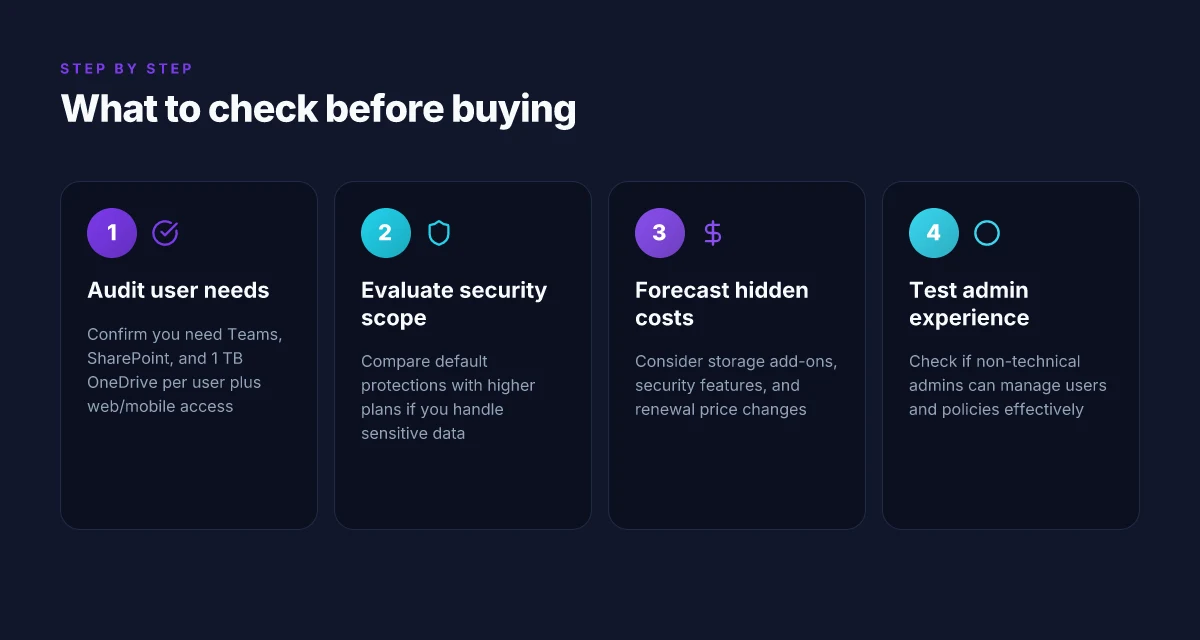
For small teams, the Admin center remains the primary control plane. Non-technical admins benefit from the simplified user management and guided policy wizards, but the depth of security and compliance settings can still overwhelm. The most helpful signals come from clear role-based access settings and straightforward license assignment flows. When setup is clean, provisioning new users and applying basic security policies can be done in minutes, not hours. The Admin center shines for non-technical admins when it stays in the default guided mode, but it can threaten to overwhelm if you dive too deep without a plan. Inline documentation and succinct, contextual tips matter here. This is where a deliberate minimal-privilege approach pays off. Inline examples highlight how to grant mail, Teams, and OneDrive access without opening broader permissions. See sources that discuss the plain-language guidance and policy wizards in practice. Non-technical admins benefit most from guided flows. The practical takeaway: start with core roles, lock down guest access, and layer in advanced controls only after a trial run with your first 5–10 users. Guided setup reduces misconfigurations.
Office apps vs web apps. Offline access
Office apps deliver the familiar desktop experience, while the web apps keep teams moving from any device. For pure offline work, the desktop suites on Windows and macOS provide substantial parity with web apps, with local file access continuing to be the main differentiator. Teams and OneDrive sync behavior remains a frequent source of friction when bandwidth is variable. Local caching and notification settings help mitigate confusion about file state. In practice, many teams rely on Outlook and Teams for core daily tasks, then switch to the web or mobile apps for quick edits when on the go. The result is a hybrid pattern: robust desktop apps for heavy drafting and offline access, plus web apps for quick collaboration and cross-device continuity. Offline access through desktop apps remains essential for reliability. Web apps complement by enabling rapid collaboration and cross-device access. This balance keeps small teams productive even when a network blips. For citations on app behavior and offline scenarios, see vendor and practitioner write-ups that map desktop vs web experiences. Desktop apps + web parity is the sweet spot.
Known pain points and workarounds
Common themes center on licensing clarity, occasional latency in policy updates, and the learning curve for security settings. A frequent complaint is when users surface in the wrong group or a policy lags before applying, which temporarily severs access to key tools. Workarounds often involve staging changes in a test group, enabling logging, and scheduling policy deployments during non-peak hours to avoid user disruption. Another recurring item is the drift between email security expectations and the actual anti-phishing controls available at Basic tier. Layering in basic Defender for Office 365 protections can close gaps, but that adds to the cost considerations. I found that organizations that document a 2-step approval workflow for license changes see fewer accidental over-assignments and easier cost management. Staging changes reduces disruption. Documented license governance lowers surprises on renewals. For readers evaluating this in 2026, expect ongoing adjustments as Microsoft gradually tunes the basic security stack to cover more scenarios without breaking the simplicity promise. Governance discipline matters more than ever. How to switch code editors and IDEs in 2026 without losing productivity
Note: links on the page may earn a commission. For context and up-to-date specifics, see related discussions around plan differences and price moves in 2026. Price signals influence choice between Basic and higher tiers. This section relies on public documentation and practitioner insights published in 2026. The 2026 pricing context shapes total cost of ownership.
What to try this week: lean into Microsoft 365 Business Basic for small teams
Small teams gain clarity by leaning into one simple baseline, Microsoft 365 Business Basic, and building work patterns around it. In 2026, the platform remains a practical anchor for collaboration, security, and affordable productivity. I looked at how its core tools line up for real-world use: Exchange email, Teams chat and meetings, and web-based Office apps that don’t force heavy local installs. The result is a predictable baseline that lets you move fast without overhauling your entire stack. The bigger pattern here is that small teams win when their tools reduce friction, not when they add features you won’t use.
If you’re deciding where to start, consider two focused paths. First, set up a shared calendar and a single team channel in Teams for cross-functional work streams, so everyone sees the same context. Second, route external communications through Outlook with shared calendars and simple retention policies to avoid clutter. These moves keep onboarding quick and ensure teammates stay in sync as you scale. One move that matters: standardize on a single collaboration backbone and enforce consistent naming and file-location conventions.
Backup strategy:
- Create a lightweight backup plan for emails and shared files using OneDrive for business and SharePoint with version history enabled.
- Schedule a monthly audit of who has access to key notebooks and channels, and prune stale data.
- Try enabling retention policies for critical teams and automate simple archiving to reduce risk.
Links on this page may earn a commission. What makes two factor authentication stronger in 2026