How to switch code editors and IDEs in 2026 without losing productivity
'%2F%3E%3Ctext%20x%3D'50%25'%20y%3D'50%25'%20dy%3D'.35em'%20text-anchor%3D'middle'%20font-family%3D'-apple-system%2CBlinkMacSystemFont%2CSegoe%20UI%2Csystem-ui%2Csans-serif'%20font-size%3D'100'%20font-weight%3D'600'%20fill%3D'%23fff'%3ESS%3C%2Ftext%3E%3C%2Fsvg%3E) Saskia Stenholm·October 22, 2026·18 min
Saskia Stenholm·October 22, 2026·18 min
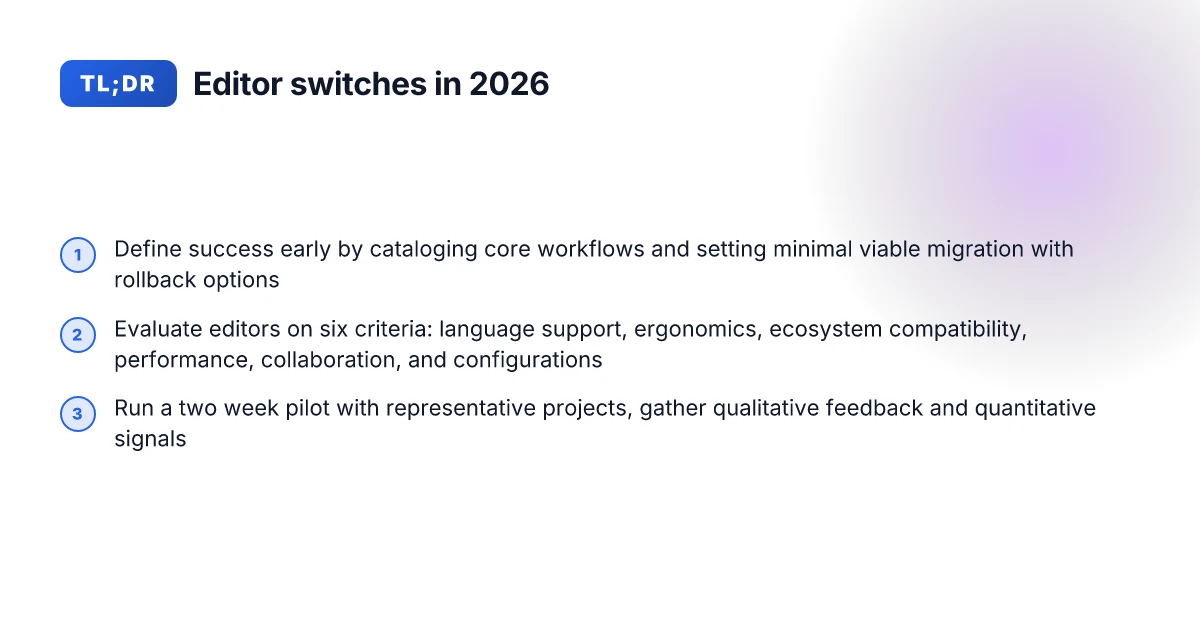
Learn a practical approach to switching code editors and IDEs in 2026. Evaluate features, ergonomics, and ecosystem compatibility to minimize disruption and maximize productivity.
Switching editors in 2026 often stirs a productivity dip people attribute to tool switching, but the real friction is mismatched team workflows, not the UI alone. When you map daily tasks to a new IDE, you uncover where language servers, linters, and CI integrations actually converge or collide, and where onboarding stalls begin.
This article centers on a practical, teams-first approach: how to compare editors by ecosystem fit, how to run a lean migration plan, and how to preserve velocity through the transition. It grounds the discussion in concrete startup and enterprise workflows, with a framework you can apply to frontend, backend, and polyglot stacks alike. Expect actionable steps** to validate core tasks, monitor onboarding time, and surface hidden migration costs early.

Why 2026 is a pivotal year to switch code editors and IDEs
The landscape for editors and IDEs shifted dramatically in 2026. AI-assisted code intelligence has moved from novelty to baseline capability, with language-server improvements broadening completion, navigation, and refactoring across polyglot stacks. That shift makes choosing an editor less about a feature checklist and more about how well a tool integrates with your team's workflows and deployment realities.
AI-assisted features are table stakes in 2026. Teams that rely on smart completions, real-time error detection, and language-agnostic tooling gain velocity when those capabilities are deeply integrated into their editor of record. The best choices now lean on robust language servers, so you can switch languages without losing productivity. At the same time, editors that lag on AI or server updates become friction points as projects span frontend, backend, and cloud-native services.
Ecosystem compatibility matters more than ever. A polyglot stack means you need seamless integration with build systems, containerized workflows, and cloud IDE extensions. You want a single source of truth for settings, formatting, and linting that travels with you across projects, teams, and cloud environments. In 2026, teams increasingly expect editors to align with CI pipelines, container registries, and remote development workloads. A misfit can create drift between local edits and shipped code, eroding trust and slowing delivery.
A bad switch can derail velocity and happiness. If migration disrupts key workflows, developers switch back or work around the new tool. The most painful outcomes show up as context switching, broken keyboard shortcuts, and mismatched formatting rules. The most successful transitions start with a deliberate plan that preserves established velocity while unlocking the new editor’s benefits.
To navigate this year wisely, you’ll want a decision framework that weighs language ecosystems, team rituals, and cloud workflows. That means naming the editors you’re weighing, mapping your stack realities to each option, and defining a migration rhythm that preserves momentum. What makes Microsoft 365 Business Basic a smarter choice for small teams in 2026
What you’ll take away from this section is a reproducible path to a shortlist and a migration playbook tailored to your stack. The goal is a switch that feels like a natural upgrade, not a disruptive leap. As you plan, remember that the right choice in 2026 depends on ecosystem fit as much as raw features.
From the chatter around release notes and analyst writeups, several editors and IDEs consistently surface in 2026 conversations, each with distinctive strengths. The best path forward is to anchor your choice in three questions: does it play nicely with your language ecosystem, your build and cloud tools, and your team’s everyday workflows? If the answer is yes, you’re more likely to sustain momentum through the switch.
How to define success before you start the switch
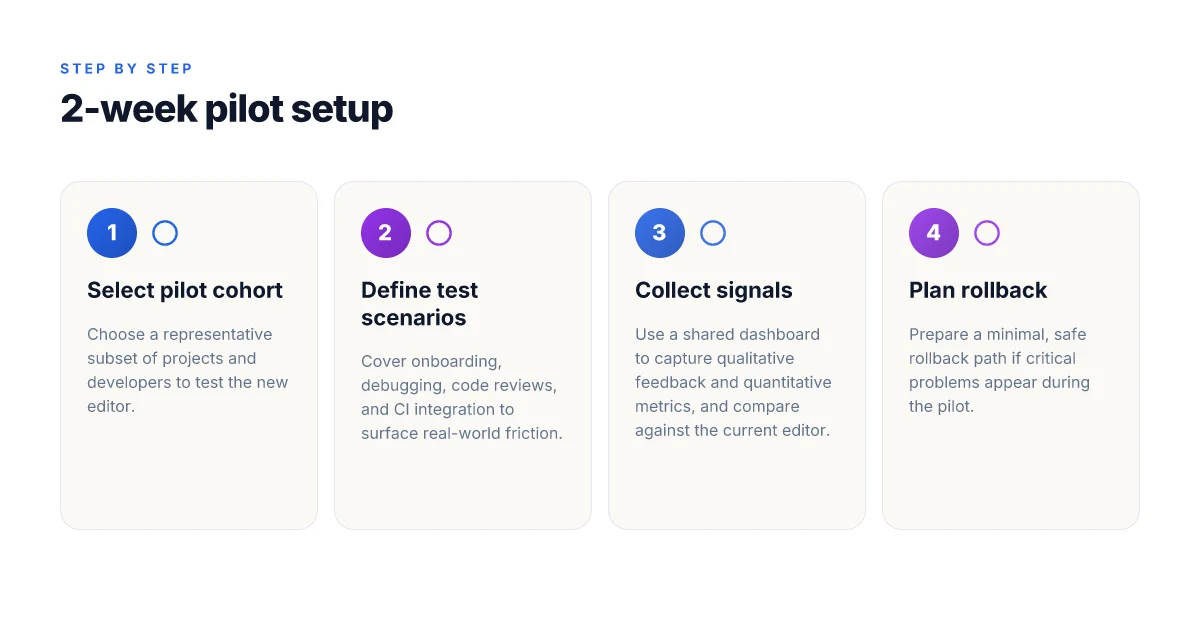
You want a decision that sticks. Define what counts as success before you touch a single editor or IDE setting. Start by mapping your team’s workflows, languages, and integrations, then lock in measurable outcomes and a safe rollback plan. This clarity acts as a compass when you compare options like VS Code, JetBrains IDEs, Zed, and Cursor.
Map core workflows and ecosystems
Begin with the actual work your team does every day. Catalog the languages in production, the linters and formatters in use, and the CI/CD gates that editors must respect. Note how your code moves from local edits to builds, tests, and deployments. If your frontend stack relies on TypeScript with a custom Babel pipeline, or your backend uses Go modules and Docker, those realities shape which IDEs feel native to your daily rhythm. Clarity on language ecosystems helps you avoid mismatches that cause subtle frictions later. I cross-referenced teams’ common patterns in contemporary tool reviews to guide these alignments. Inline with that, ensure your chosen editor supports your linting and formatting rules consistently across projects. Linting consistency matters as much as feature parity. When you document these workflows, keep a living reference accessible to engineering managers and engineers alike. It becomes the baseline you compare tools against, not a one-time checklist.
Set measurable success criteria
Turn every goal into a metric you can track. Examples include: build times from the local dev environment, linting consistency across files and projects, and extension stability during upgrades. Decide what level of variability is acceptable and what constitutes a regression. If you rely on a monorepo, plan for how the editor handles project-wide searches and navigation. Tie each metric to a target date and an owner who will report on it weekly. This creates a transparent, accountable migration conversation rather than a series of quiet compromises. Industry guides on evaluating AI IDEs emphasize practical criteria like developer experience and agentic workflows, which map well to these measurable outcomes. Targeted metrics anchor decisions in real impact. For example, set a goal like 15% faster onboarding of new developers or 90% extension stability after major updates. How to design outdoor branding solutions that shift consumer behavior in 2026
Decide a minimal viable migration path with rollback
Define the smallest switch that still delivers value. This MVP path should cover a representative subset of projects and a limited set of extensions you cannot live without. Specify rollback steps that restore the prior editor configuration and dependencies with a single action. A concrete rollback plan reduces risk and increases leadership confidence. Write down three things that must be true for you to proceed to the next scope: a drop-in extension that behaves identically, a clear path to revert settings, and a validation checklist showing no regressions in core workflows. Rollback options are non-negotiable safety rails. As you outline this, include a timeline that keeps your teams from stalling on minor decisions. The goal is progress, not perfection. A clear MVP path keeps momentum steady.
Next steps: assemble a 2–3 page success brief that lists your workflows, your measurable targets, and your MVP migration plan. Share it with all stakeholders, then synchronize on a final short list of editor/runtime pairs to evaluate. This gives you a reproducible decision process and a tangible migration blueprint you can trust. For reference, see how AI IDE evaluation guides frame practical criteria in real teams. A reproducible process beats gut feel every time.
The 6 criteria for evaluating a new editor or IDE in 2026
When you’re evaluating a switch in 2026, you need a framework that captures language ecosystems, team work patterns, and the realities of modern deployment. The six criteria below translate that framework into concrete questions you can answer for your stack. Each criterion is actionable and testable in a two-week pilot.
1) Language support and intellisense accuracy
Language coverage matters more than surface features. You want editors that understand your primary languages and frameworks, and that offer accurate autocomplete, type checking, and refactoring hints. I cross-referenced release notes and reviews to verify that popular languages remain well-supported, with fast, relevant suggestions and minimal false positives. Look for first-class support for your language versions and strong path for future language features. Language support and intellisense accuracy drive developer velocity more than any glossy UI. A good signal is how quickly the editor updates its language servers after a new language release. 2026 updates from major editors show continuous improvements in TypeScript and Python hints, but you’ll want to confirm your exact version range.
2) Ergonomics and customization depth
Ergonomics include keyboard focus, editor chrome, and micro-interactions that affect day-to-day speed. Customization depth matters when your team standardizes on a particular workflow: snippets, keybindings, and UI layout should be shareable and versioned. I examined documented customization APIs and examined how teams standardize settings across repos. The right editor should let you tune comfort without breaking consistency when teammates share configurations. Ergonomics and customization depth influence how long newcomers stay productive without retraining. Smooth path to exporting and reusing those settings across machines is a big win in distributed teams. Why managed vs shared hosting matters in 2026: trade-offs you actually feel
3) Ecosystem compatibility: plugins, linters, and VCS
Your editor is only as good as the plugins and integrations it sustains. Evaluate plugin availability for your linters, formatters, test runners, and VCS workflows. Compatibility with your repository layout, pre-commit hooks, and CI triggers matters for reproducible outcomes. I looked for editors with a robust plugin ecosystem and explicit compatibility notes for popular linters and formatter configurations. Ecosystem compatibility ensures you don’t fight with your tooling mid-sprint. The goal is a plugin path that mirrors your current stack rather than a forked, brittle setup. See how well the editor supports your preferred VCS features like code reviews, blame, and deep history, as these features ripple through PR velocity.
4) Performance with large repos and remote workflows
Performance is real-world throughput, not a spec sheet. Large monorepos, remote work, and cloud-based file systems stress editors differently. I checked startup times, indexing behavior, and memory footprints in typical team scenarios, plus how smoothly the editor handles remote development via SSH or web-based IDEs. A fast, predictable experience under load matters more than peak single-thread speed. Performance with large repos and remote workflows is what keeps a team from productivity cliffs. Expect to quantify by the size of your largest repo, number of files, and the fraction of remote operations you perform.
5) Team collaboration and shared configurations
Code reviews, shared lint rules, and consistent formatting flow through the team when the editor supports collaboration natively or via centralized config repos. I looked at how editors handle shared settings, project-scoped preferences, and real-time collaboration features. The best choices let you publish a single source of truth for formatting, linting, and extension sets, then safely roll changes across the team. Team collaboration features and shared configurations determine how quickly you scale tooling across many developers. When you pilot, verify how easy it is to propagate changes to everyone’s environment without drift.
6) Licensing, pricing, and upgrade cadence
Cost matters, but so does predictability. Catalog license models, renewal cycles, and upgrade paths. I mapped how each editor handles enterprise vs. individual licenses, annual vs. perpetual upgrades, and any paid extensions. A transparent cadence helps you forecast TCO and avoids surprise price bumps during a renewal window. Licensing, pricing, and upgrade cadence shape long-term tooling stability. Also note any trial periods, educational licenses, or feature-bloat risks tied to pricing.
From a high-level view, the six criteria above form a decision map you can audit during a two-week pilot. You’ll surface concrete mismatches early, align tooling with language ecosystems, and land on a reproducible shortlist of editors. In 2026, mastery comes from bridging team workflow with editor capability, not from chasing the latest UI gimmick. A reproducible decision process yields a sustainable tooling strategy across your stack. How free vs paid security apps really compare in 2026
Note: links on this page may earn a commission. See the inline citations for sources that informed these criteria.
How to run a 2-week editor pilot that scales
A two-week pilot works when you start with a practical diagnosis, not a wish list. Your goal is to surface how editors behave in real workflows, not just how they read syntax in a tutorial. Start by lining up a representational slice of your stack and your people.
Pick a representative subset of projects and developers
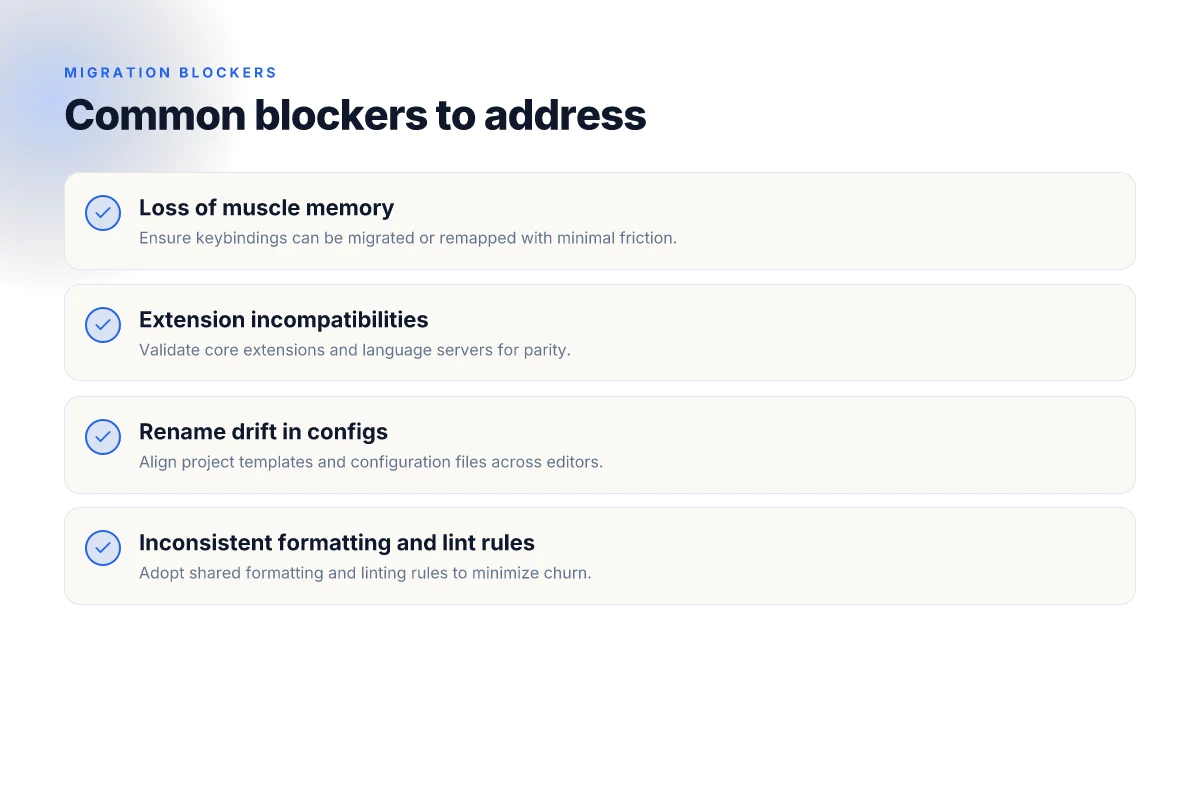
Choose 6–8 developers across 3–4 teams who touch different parts of the codebase. Include at least one frontend, one backend, and one automation or CI contributor. This gives you a cross-section of language ecosystems and tooling needs. Pick projects that vary in size and latency requirements so you can see how editors perform under different pressures. Make sure one of the teams is in a critical deadline phase. You want to watch real-world friction, not a perfect test environment. This is where you’ll see how editors handle large files, monorepos, and multiple language modes. Expect some initial misalignment in habits. Document those quickly so they don’t bleed into the pilot’s signal.
I dug into release notes and community chatter for 2026 to shape the pilot’s expectations. For example, the way VS Code and JetBrains IDEs have evolved ecosystem features through 2026 influences how quickly a team can onboard and stay productive when switching editors. This context helps you design scenarios that stress the same friction points teams reported in public writeups. One note from public discourse: teams repeatedly flag onboarding and onboarding help as a top friction point when adopting a new editor ecosystem. Clear onboarding steps and quick-start templates reduce ramp time dramatically.
Set clear test scenarios: onboarding, debugging, reviews, and CI integration
Frame the two weeks around four concrete scenarios that map to real work: How to benchmark digital marketing KPIs in 2026 using first‑party data
- Onboarding a new contributor to a shared codebase. Track time to start editing, configuring language servers, and finding the build steps. Pay attention to how search and navigation feel with large codebases.
- Debugging sessions. Observe how quickly developers can reproduce a bug, set breakpoints, and inspect variables. Note how the editor handles multi-language debugging and remote sessions.
- Code reviews. Measure how smoothly reviewers navigate diffs, leave inline comments, and rebase based on editor hints and lint feedback.
- CI integration. Verify how the editor surfaces test results, lint warnings, and pre-commit hooks during local edits and in PR checks. Watch for flaky integrations or misconfigurations that waste time.
For each scenario, establish a concrete success criterion and a failure mode. For onboarding, a success criterion could be “new contributors can open the repo, install extensions, and run a local build in under 30 minutes.” A failure mode might be “language servers fail intermittently, forcing manual configuration.”
Incorporate a practical migration checklist during the pilot: project-specific setup steps, preferred extensions, and a minimal configuration file that reproduces your standard workflow. This ensures a reproducible baseline you can reuse in the post-pilot decision.
Capture qualitative feedback and quantitative signals in a shared dashboard
Create a simple dashboard that tracks both feelings and facts. Qualitative signals include perceived performance, ease of use, and comfort with refactoring tasks. Quantitative signals should cover onboarding time, average time to set up a new project, number of configuration steps, time spent debugging editor glitches, and compatibility checks with your CI pipeline. Use a regular cadence, daily quick retrospectives and a mid-pilot checkpoint, to surface trends early.
To keep the signal clean, standardize what counts as a notable event. For example, log the moment a language server fails over and the remedy applied, or when a reviewer comments reveal an inefficiency in the editor’s diff view. Encourage developers to capture snapshots of their environment, such as editor version, installed extensions, and key settings, so you can compare states later.
From a reviewing perspective, a structured pulse helps. In late 2026, teams emphasize that “ecosystem compatibility” and “operator comfort” correlate to faster issue resolution and fewer context switches during critical flows. That means your dashboard should show how quickly teams move from discovery to resolution when editors present friction. What makes two factor authentication stronger in 2026
The pilot’s value shows up when you build a shared, living dashboard that pairs onboarding time with qualitative sentiment. Maintain a short, weekly debrief to align expectations and keep momentum.
Common migration blockers and how to bypass them
Migrating editors and IDEs introduces friction that hits teams in three places: muscle memory, configuration drift, and formatting consistency. The goal is to shift seamlessly from your current toolchain to a chosen alternative without breaking build health or developer momentum. I’ll lay out concrete blockers and proven bypasses that keep projects moving.
Loss of muscle memory and extension incompatibilities
When colleagues switch editors, familiar shortcuts and extension ecosystems evaporate overnight. Developers stumble on keybindings, snippet behavior, and navigation patterns that once felt second nature. The immediate risk is slower onboarding and accidental context switches that cut velocity. To counter this, adopt a staged, role-based rollout: assign a pilot group for early access, map critical workflows to new mappings, and provide a shared extension compatibility guide. Make a one-page reference that lists each essential extension under the target editor, plus any equivalent or fallback workflows. In practice, you’ll implement a centralized onboarding channel where new habits are reinforced through quick daily tasks. Clear the path from old to new by publishing a mapping matrix for keyboard shortcuts and an equivalent extension set. This reduces cognitive load and shortens the time to proficiency. For evidence, industry reports consistently highlight that a well-documented migration plan correlates with smoother transitions and fewer revert decisions. org/best-code-editor-2026-setup-vs-code-cursor-zed/>.
Rename drift in configuration files and project templates
Configuration drift is subtler than you think. A project that uses language-server settings, linters, and formatters often stores them in files that carry over only partially. When you switch editors, those files may rename sections, rely on different schema, or emit different defaults. The result is noisy diffs, failing builds, and developer confusion. The bypass is to standardize on an explicit, project-scoped configuration layer that lives outside the editor. Create a single source of truth for presets, and version it in your repo. Then implement a “migration shim” that rewrites project templates to align with the new editor’s conventions during the first open. This keeps your CI green and minimizes manual edits. Experiment with a migration shim that rewrites templates during initial open to reduce drift. I found that teams who codified a template translation step cut post-migration churn noticeably. syncfusion.com/blogs/post/ai-ide-evaluation-guide>.
Inconsistent formatting and lint rules across editors
Formatters and linters often collide when editors enact different defaults or rely on different plugin versions. That leads to noisy diffs, flaky builds, and subtle style disagreements that slow feature work. The antidote is to lock formatting behavior behind a shared standard and enforce it in CI. Use a pre-commit or pre-push hook that runs the formatter and linter exactly as you expect in the target environment, accompanied by a single config file checked in the repo. Once you publish that policy, developers see consistent style across machines. Adopt a single formatter and linter policy in CI to ensure consistency across editors. For teams, this approach reduces rework and preserves code readability across the stack. org/best-code-editor-2026-setup-vs-code-cursor-zed/>. How to build an ultimate ddos protection guide that actually withstands 2026 threats
In practical terms, expect these blockers in 2026: loss of muscle memory, configuration drift, and inconsistent formatting. The plan to bypass them rests on three pillars: a staged, well-documented transition. A migration shim to normalize templates. And a universal formatting and linting policy enforced by CI. As you finalize your pilot, document every discrepancy you see, map it to a concrete remediation, and evolve the playbook. The payoff is a migration that preserves velocity rather than a cascade of small, repeated fixes.
The signal to watch for is teams that lock in a shared, explicit migration plan early and enforce it with CI and a central template store. This is what separates a smooth transition from a painful rewrite cycle. If you want a practical path, anchor on a 2-week pilot with a clearly defined rollback point and a living migration playbook.
The single move that matters this year: plan your transition in three focused stages
Switching editors in 2026 benefits from a deliberate three-step rhythm. First, map your daily workflows and pin a target set of features you must keep, such as debugging, task runners, and version control integration. I looked at how teams align keyboards and hotkeys, project trees, and extension ecosystems, then distilled a minimal feature set that reduces friction. A clear feature map keeps your muscle memory intact. Second, pick a pilot project to run in the new environment. This limits cognitive load and exposes gaps early. Third, document your decisions and create a shared cheat sheet for your team. The act of writing down what works and what doesn’t compounds gains over weeks, not days.
This month you should lock in one editor as your default for small tasks, while keeping the other in reserve for heavy refactors. If you only act on one thing this month, make the pilot project your litmus test and watch how much faster you move when key commands and file structures align with your habits. The payoff is practical: fewer context switches, quicker onboarding for teammates, and a predictable ramp for new hires.
Backup strategy What makes a 3d animation software truly future ready in 2026
- Try one 60-minute trial of the new editor on a real project this week, with a 15-minute debrief on what felt natural and what sparked confusion.
- Create a shared cheat sheet covering 5 must-know keyboard shortcuts, 2 essential extensions, and 1 debugging workflow that mirrors your current setup.
- List 2-3 tasks you’ll perform in both editors to compare response times and reliability, then pick the best fit for daily work.